
Portfolio Cockpit – User guide
Find your way around
Open Apps → SUPERPORT Portfolio Cockpit. Your role decides which tabs you see. Hover a tab to see what it is for. A number on a tab means something there needs you.
| Tab | What it is for | Who sees it (default) |
|---|---|---|
| My work | Your tasks of the week. Book hours and fill in missing values. | Everyone |
| Portfolio | All projects in rank order with progress, health, who waits for whom and the waterline. | Project admins, management |
| Projects | One project in detail: action needed, missing values, structure and capacity. | Project admins, management |
| Teams | One team: what it works on, how loaded it is, and its capacities. | Project admins, management |
| Weekly planning | Who works on what and when. Move tasks and apply them in Jira. | Project admins, management |
| Plan vs. actual | Where the hours went, compared with the week's plan, and whether everyone booked enough. | Project admins, management |
| Support | Dispatch tickets, SLAs and the support reserve. Only shown when support is set up. | Project admins, management |
| C-level report | The situation on one page, as PDF or Excel. | Management |
| Configuration | All settings. | Jira admins |
At the top you also find:
- Search or jump … (Ctrl K): find projects, work items, views and actions, or hand Lotse a question.
- Ask and Lotse: ask questions in your own words (see below).
- ↶ with a number: what you can undo. Ctrl/⌘ + Z undoes your last action.
- DE | EN: switch the language. ? restarts the tour.
Book your week
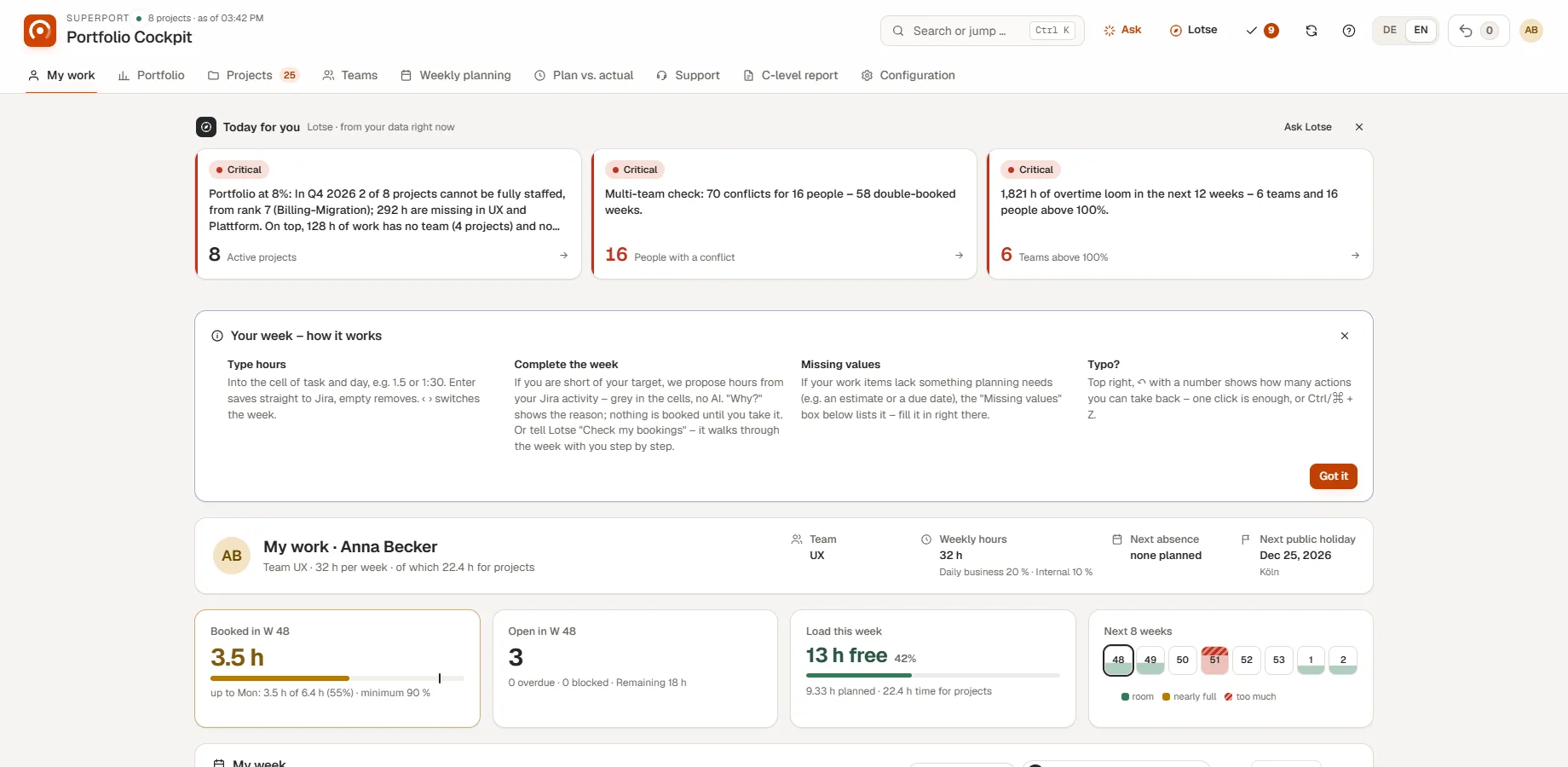
Under My work you see your own week: your team, weekly hours, the next absence and public holiday, and your tasks.
- Open My work. Use Previous week, This week and Next week to switch weeks.
- Type hours into the cell of a task and day, for example
1.5or1:30. - Press Enter. The hours are booked in Jira as a worklog, with your own Jira permissions. An empty cell removes the booking.
- Click a cell with hours to add a comment (What was done?).
- Need a task that is not listed? Use Add another task and type a key or title.
Complete the week
If you are short of your target, Complete the week proposes hours from your own Jira activity. Proposals appear in grey in the cells. Why? shows the reason. Nothing is booked until you take a proposal (Enter takes it). This works without AI.
Fill in missing values
The Missing values box lists values your work items need for reliable planning, for example an estimate or a due date. Fill them in right there.
Rank projects and read the waterline
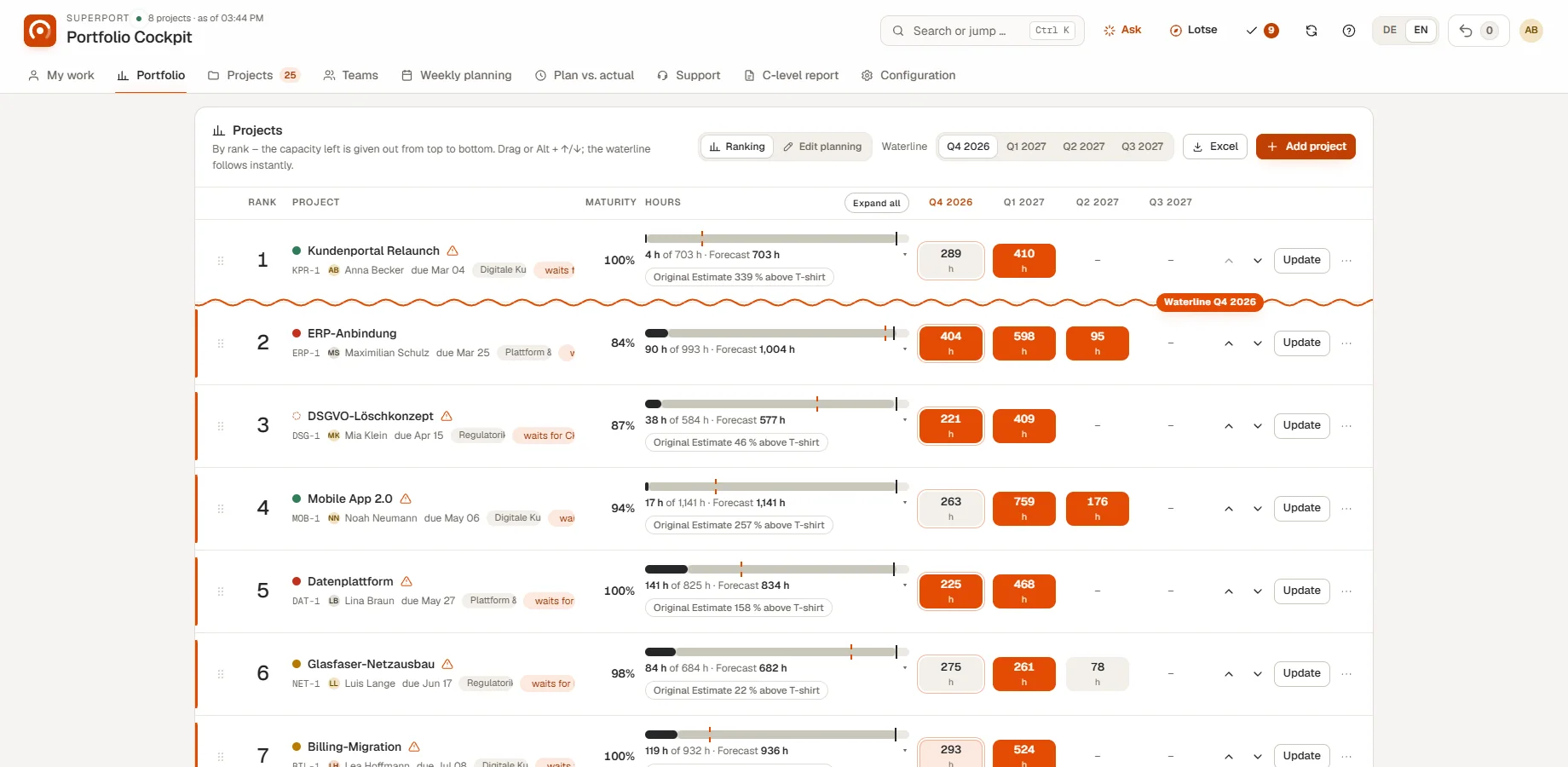
The Portfolio tab shows all projects by rank. Capacity is given out from the top down: support first, then each project. The orange waterline shows where capacity runs out for the chosen quarter.
- Open Portfolio. Choose the quarter next to Waterline.
- To change the order, drag a project up or down, or select it and press Alt + ↑/↓. The waterline follows at once. (Only roles with the right to change the ranking can do this; by default, management.)
- Read the quarter cells: Fully staffable, partly staffable or Not staffable. Hover a cell to see the missing hours per team.
- Look at the chips: Waits for other projects shows dependencies. Orange means a date conflict or the prerequisite ranks lower.
Update a project's health
- Click Update on a project.
- Pick a status: On track, At risk or Critical.
- Write one sentence and save. With AI switched on, Draft with AI suggests a status and a sentence; only what you confirm is saved.
The project's owner can always update its health. There is no required rhythm; reminders only go out when a Jira admin switches them on.
Look after one project
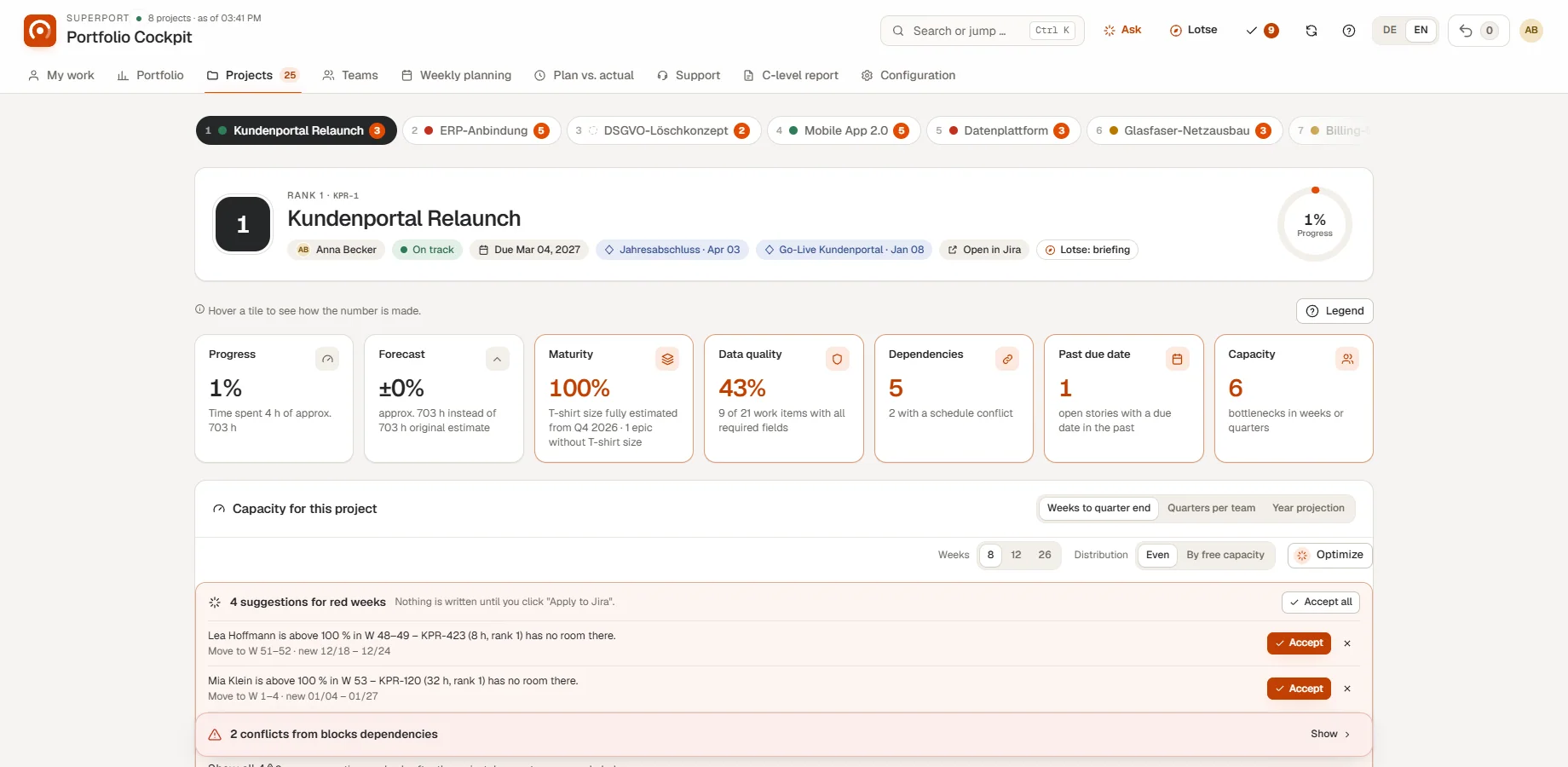
Open Projects and pick a project. The number on the tab counts urgent missing values and date conflicts.
- Action needed: what is overdue, blocked or in conflict, and work items with No parent (use Set parent).
- Missing values in the project: estimates, start dates, teams and more. Fill them in place.
- Capacity for this project: weeks or quarters per team.
- Structure: the project as Tree, Timeline or List.
Maintain team capacities
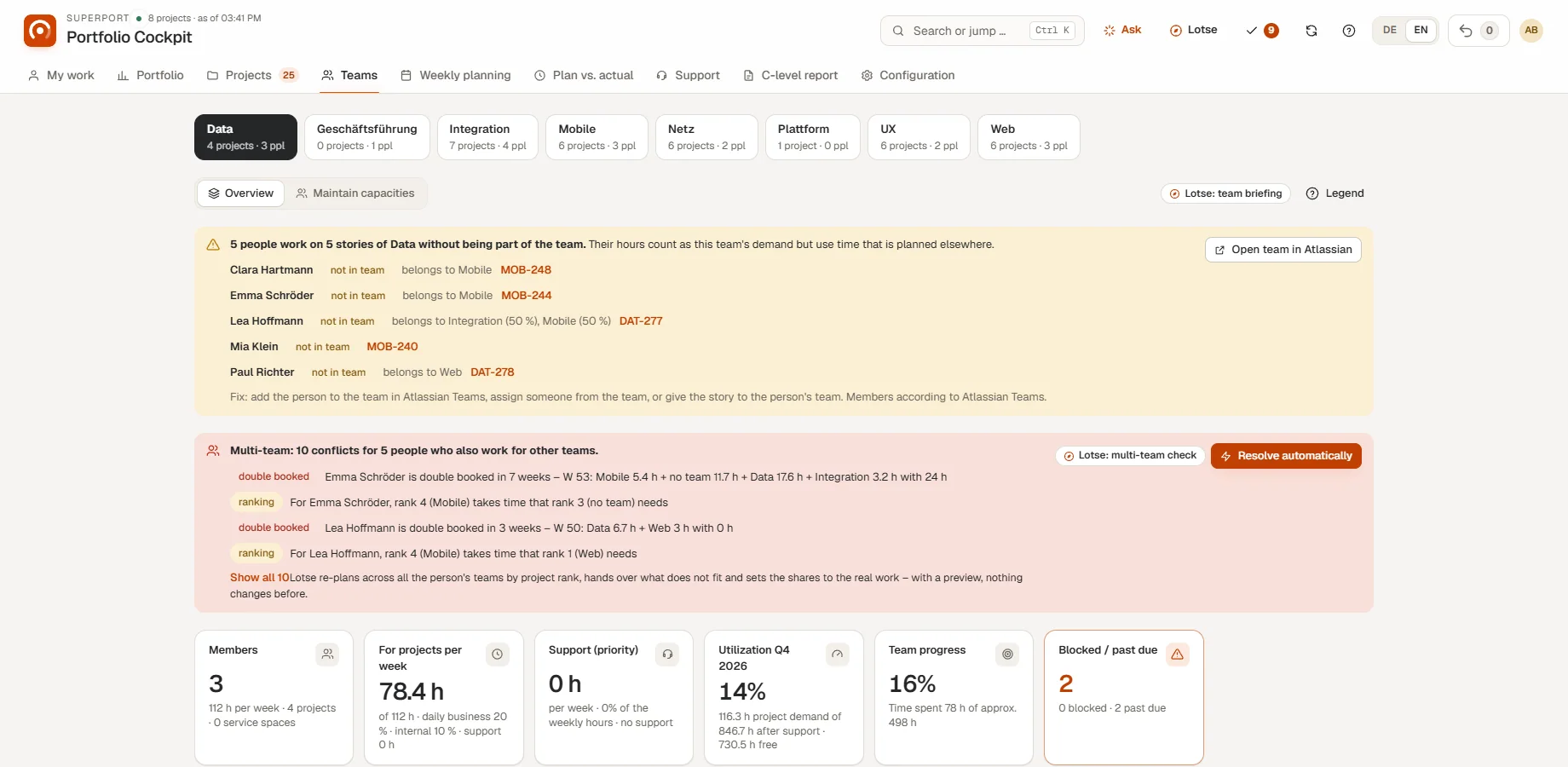
The Teams tab shows one team at a time: what it works on, its load, blocked and overdue work, and people who work outside the team (Not in team) or in several teams.
- Open Teams, pick a team and open Maintain capacities.
- For each person, enter the weekly hours, daily business and location. For people in several teams, set the team shares in %.
- Enter absences. The reason is only shown to people who may edit capacities.
- Name the team's Responsible people. They receive booking-check escalations, if those are switched on.
Plan the week
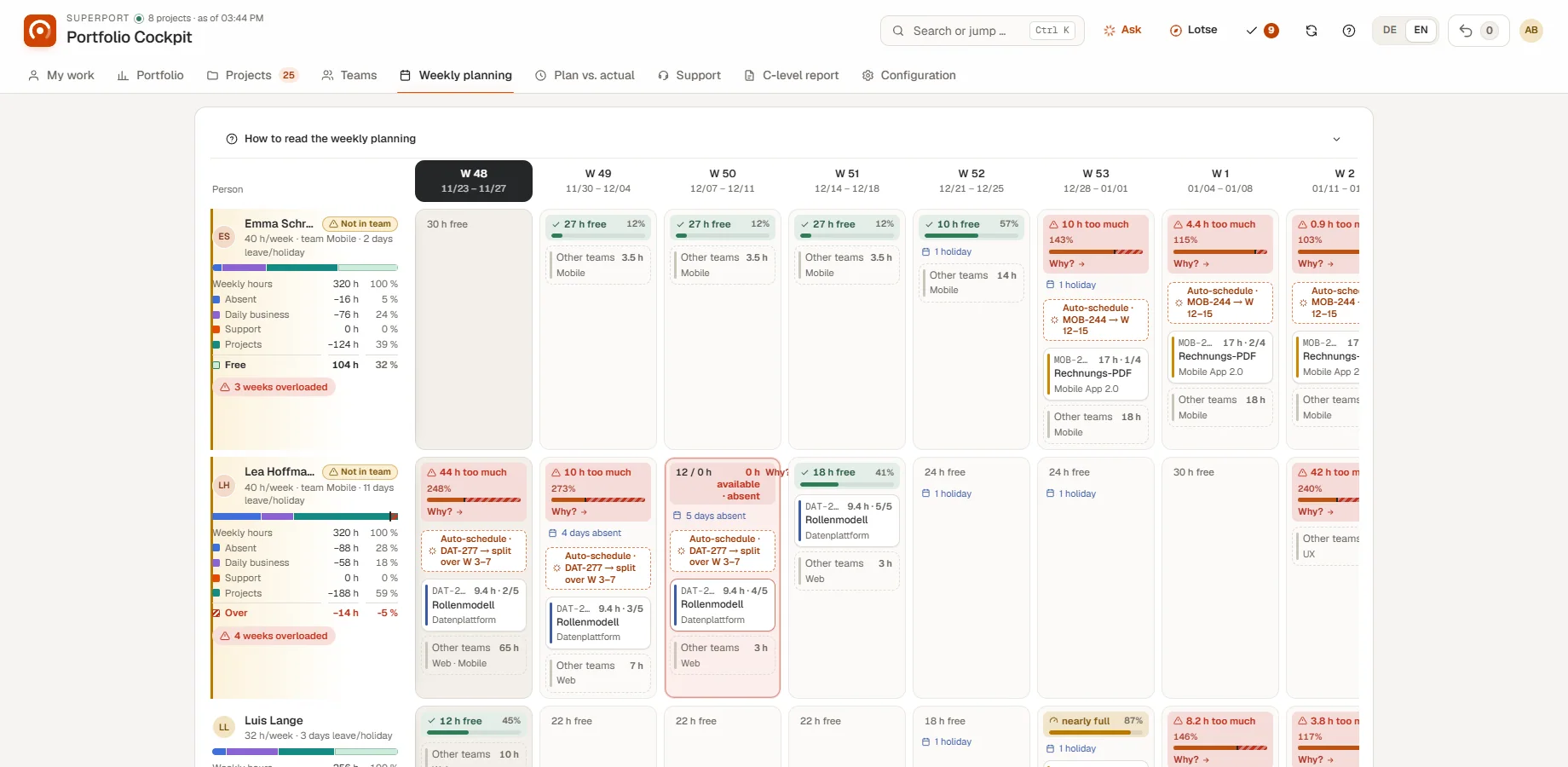
Weekly planning is a board of people and weeks for your weekly meeting. Each week shows free time, absences, holidays and support.
- Open Weekly planning and choose a team, or All teams. Switch between 8, 12 or 26 weeks.
- Red weeks are overloaded. Click Why? to see the hours behind it and a suggestion with a preview.
- Drag a task to another week (start and due dates move) or to another person. Change person … shows who has room.
- Click Optimize for suggestions: Finish sooner, Smooth overload or Rebalance, up to 85 % or 100 % utilization.
- Check the list of pending changes. Click Apply in Jira to write them, or Discard all.
Compare plan and actual
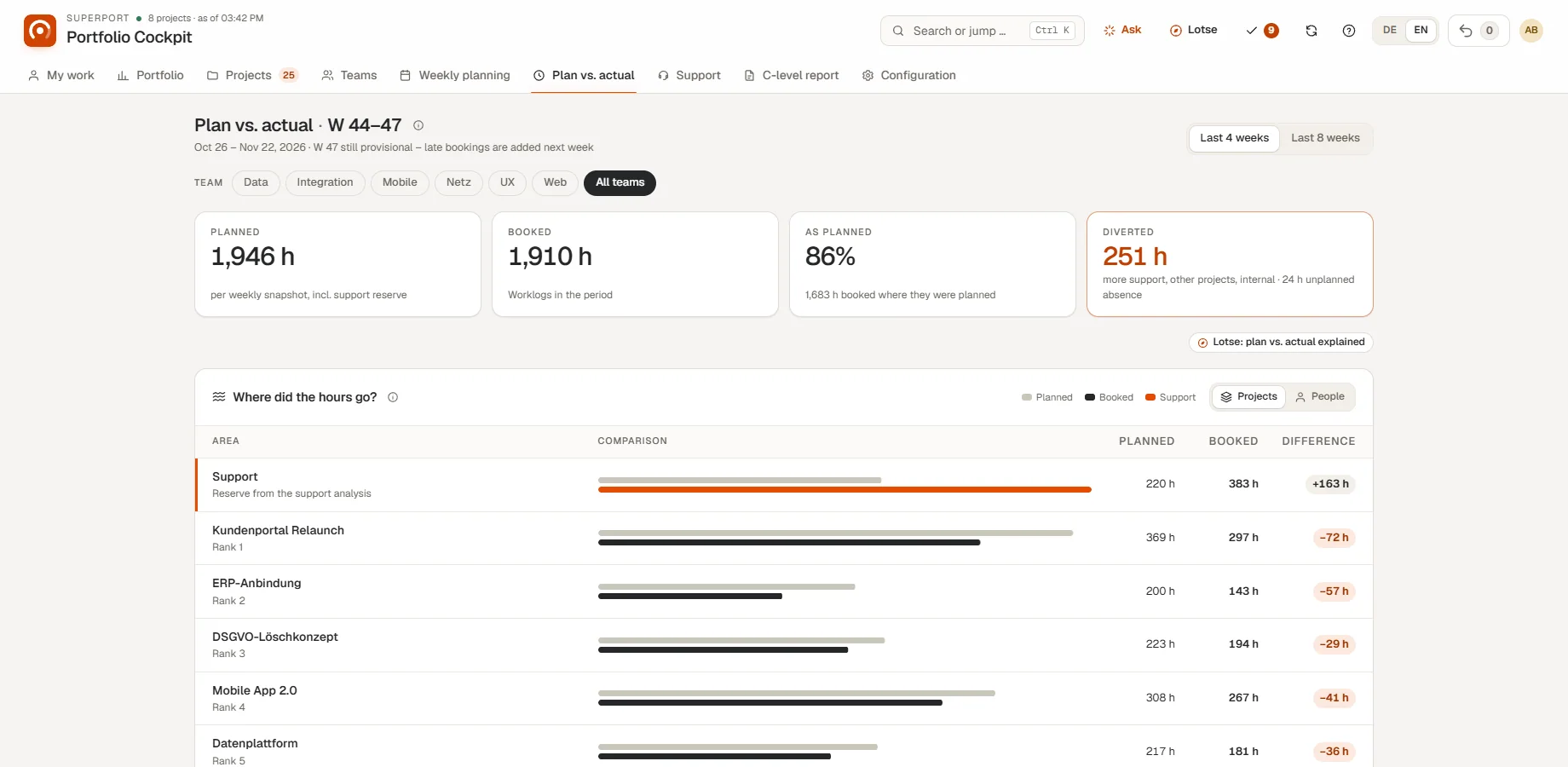
Once a week (by default Monday at 06:00) the app saves the state of the weekly plan. Plan vs. actual compares it with the hours that were booked.
- Open Plan vs. actual and choose Last 4 weeks or Last 8 weeks.
- Read As planned (hours booked where they were planned) and Diverted (more support, other projects, internal work, unplanned absence).
- Scroll down to see whether everyone booked enough. People whose individual values you may not see are grouped in a sum only row.
Handle support tickets
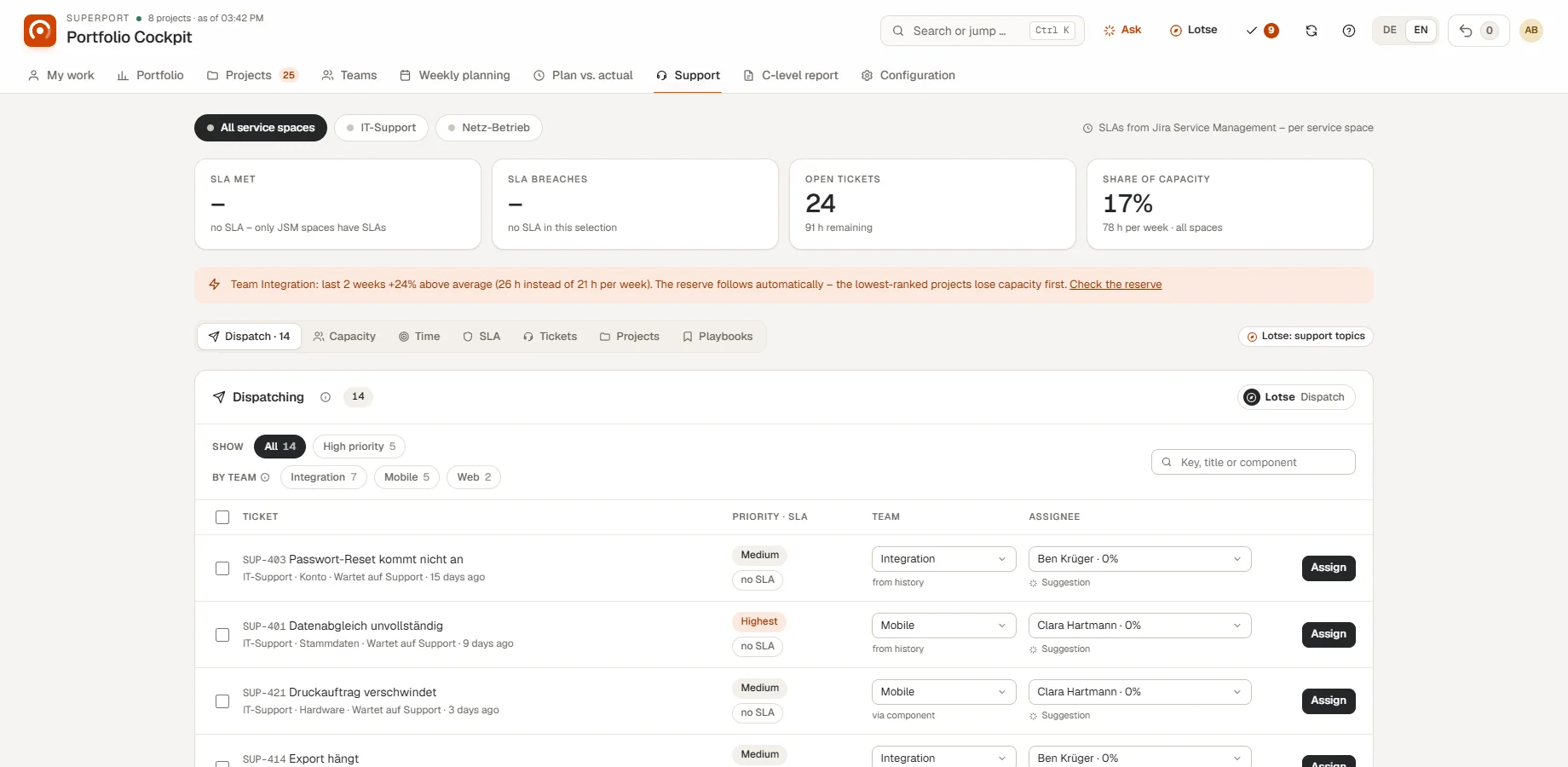
The Support tab appears when a Jira admin has set up support spaces or queues. Support always comes before projects: its hours are taken from team capacity first.
- Dispatch: new tickets with a suggested team and person. Assigning can be undone.
- Ticket lists such as Urgent and All open, with the SLA status in business hours (from Jira Service Management).
- Time: where support time goes.
- Capacity: whether the support reserve is enough.
- Playbooks: recurring topics, with a draft of steps and a standard reply you can copy. Nothing is posted to Jira.
Ask Lotse a question or give it a job
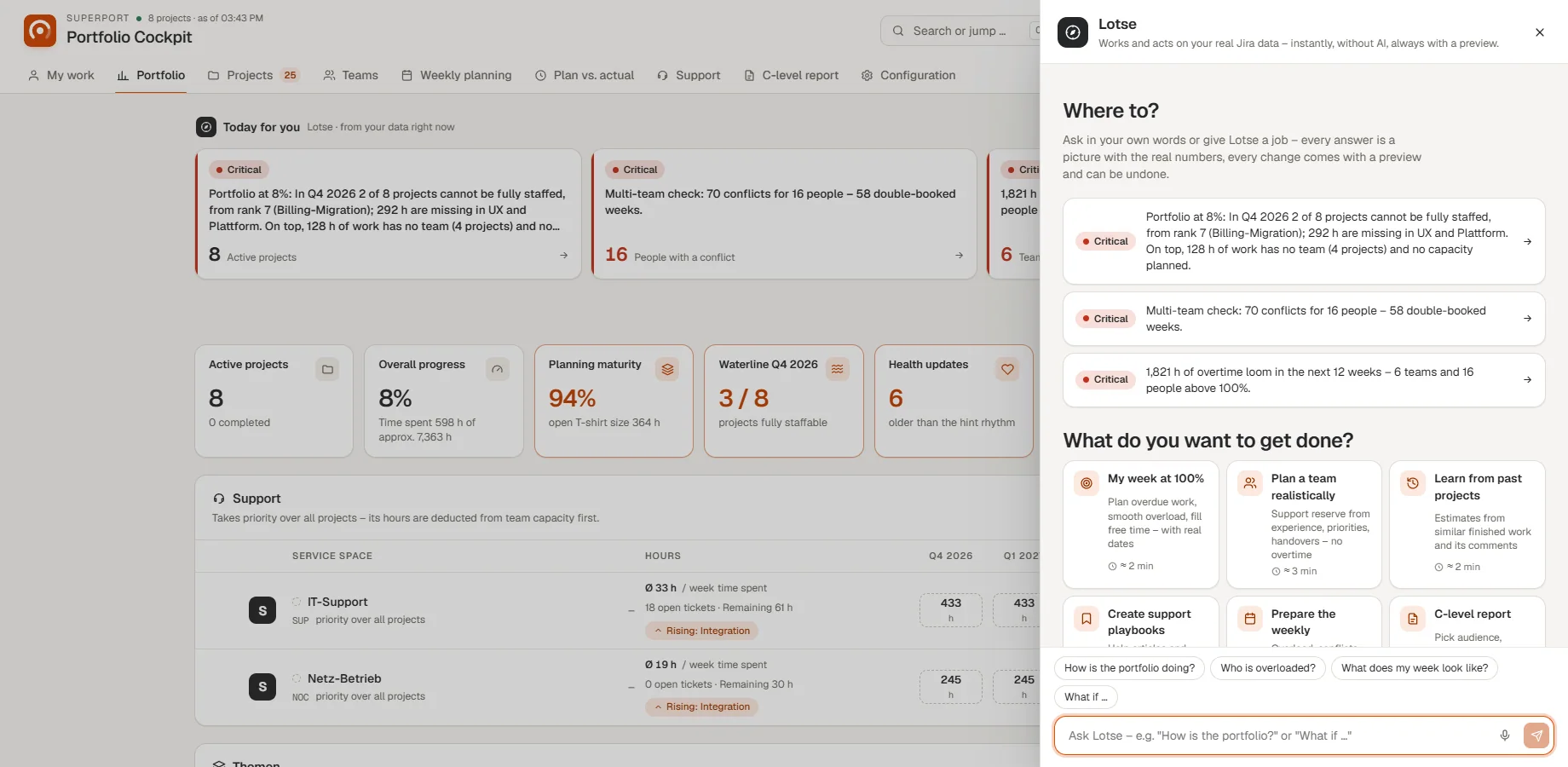
Lotse is the cockpit's own navigator. It answers from your data, shows the evidence and suggests the next step. It works instantly and without AI.
- Click Lotse at the top, or press Ctrl K.
- Ask in your own words, for example "Which projects are late?", "Who is overloaded?" or just a Jira key.
- Or give it a job: "Set the estimate of ABC-118 to 16 h". Lotse also walks you through whole jobs: prepare the weekly, fill the gaps, resolve overload, check bookings, resolve multi-team conflicts.
- Review the preview. Nothing is written before your OK, only what your role allows, and every change can be undone.
Turn a wish into an answer with Ask
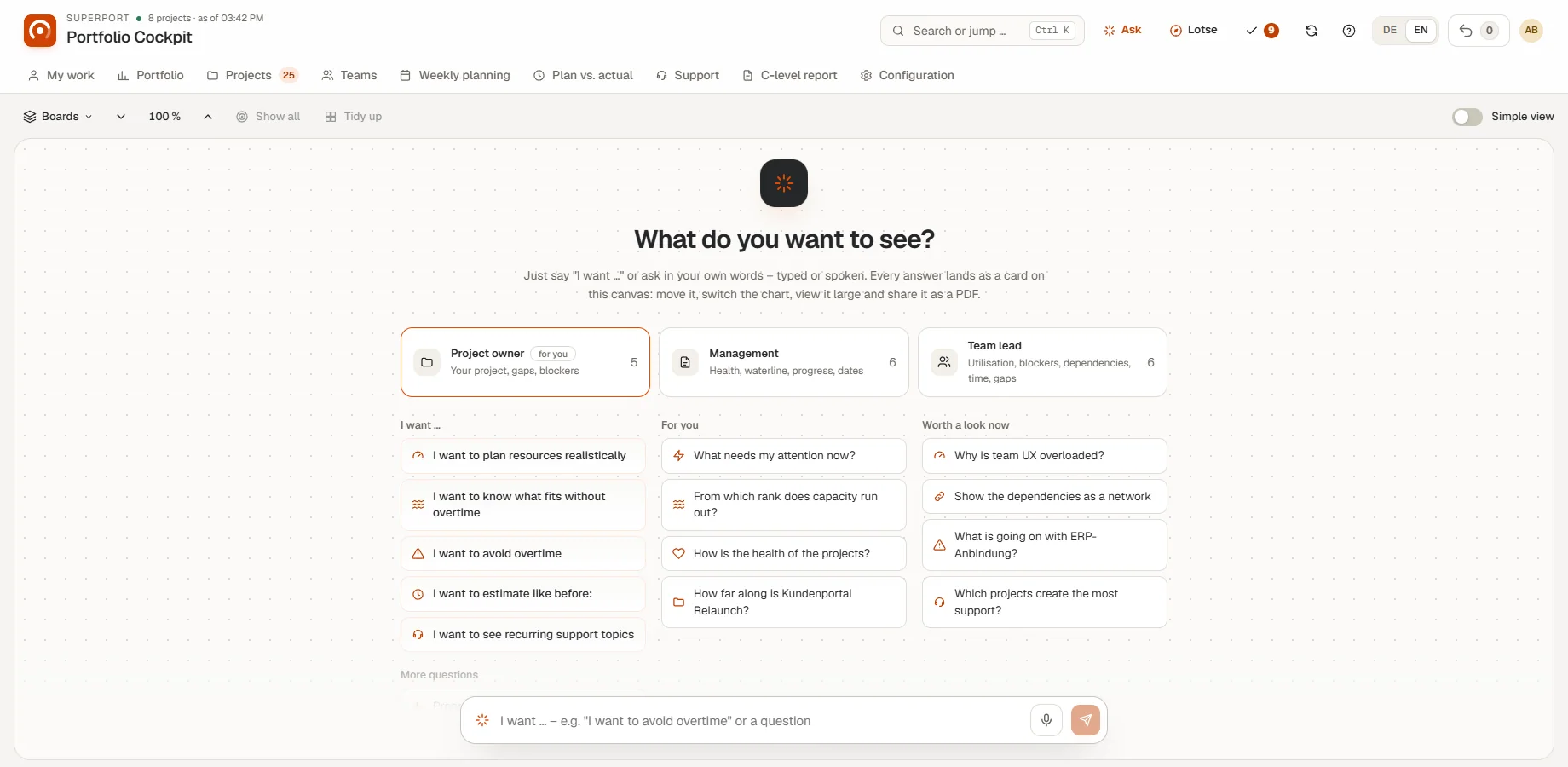
Click Ask at the top to open the Ask canvas. Type a wish, for example "I want to avoid overtime" or "estimate like last time: interface to the warehouse". Each wish becomes a card with a chart, one plain sentence and the calculation behind it. Save a set of cards as a board; it always opens with today's numbers. Export cards as PDF.
Create and share the C-level report
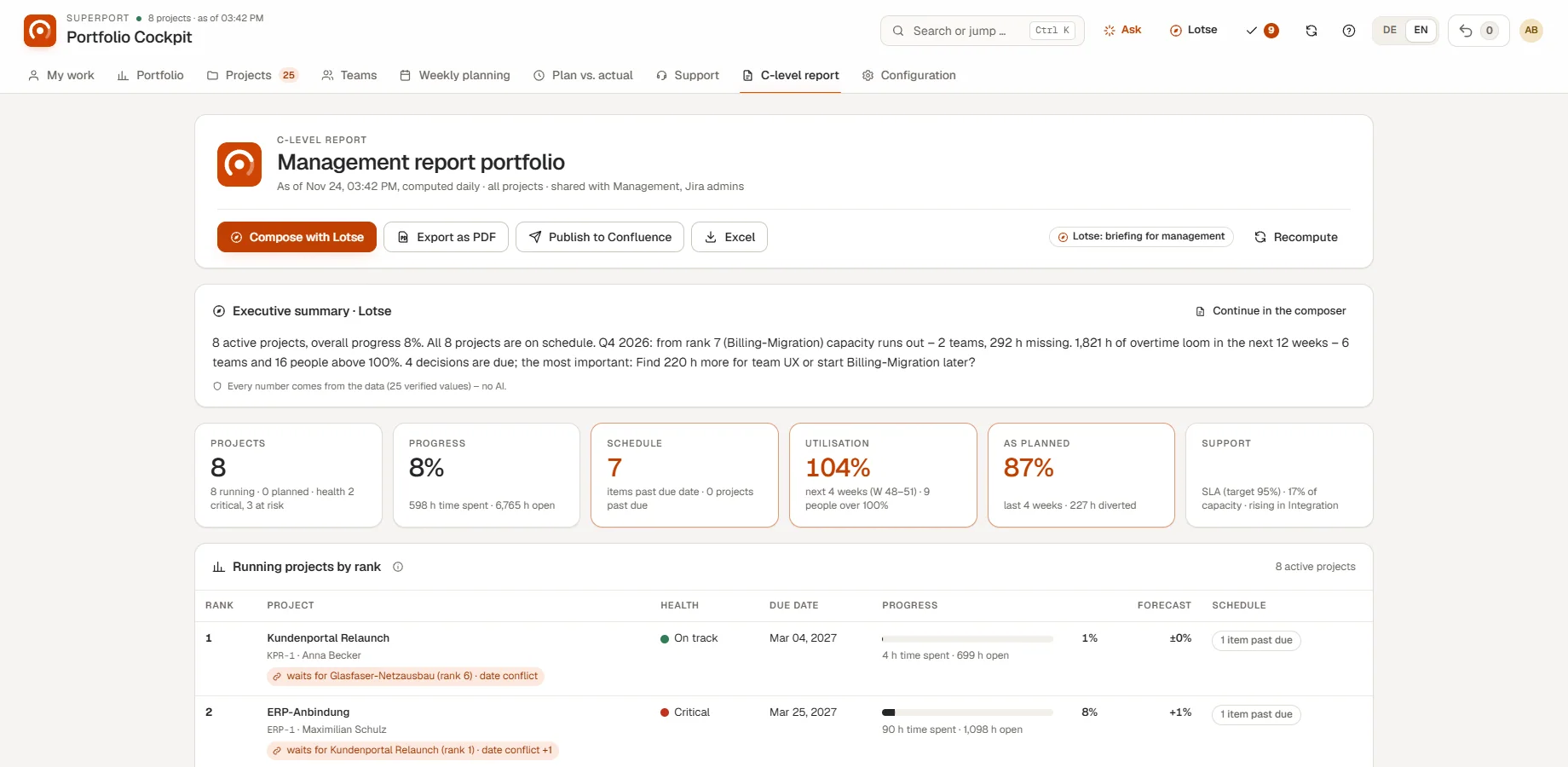
The C-level report shows the situation on one page: key figures, progress and forecast by rank, who waits for whom, capacity by rank per quarter, utilization of the next 4 weeks and where the time went. It is computed daily; Recompute updates it.
- Open C-level report.
- Click Compose with Lotse. Lotse drafts the report from your data. Drag sections, edit the text; numbers stay protected.
- Click Export as PDF. Before the export, every number is checked against fresh data.
- For the raw data, use All data as an Excel workbook.
Check a work item with the Planning check
Open any work item in Jira and click Planning check. The panel shows the project and its rank, the assignee's load per week, conflicts and dependencies. If the assignee is not a member of the work item's team, the button shows Not in team. The numbers are the same as in the cockpit.
Undo a change
- Click Undo in the message that appears after a change, or press Ctrl/⌘ + Z.
- Click ↶ at the top right for this session's history. Undo one action, or go Back to here, or Undo all.
💬 Need help? Open a request in the SUPERPORT support portal.
Documentation by George Papasotiriou, developer of SUPERPORT Portfolio Cockpit for Jira · SUPERPORT
Still stuck? Our team answers in English, German and Greek.
Open a support request