
Portfolio Cockpit – Getting started
Before you start
- You need a Jira Cloud site and the Administer Jira permission (you are a Jira admin).
- Plan about 10 minutes. Most settings are detected for you.
- Any Jira edition works when each Jira space is one project in your portfolio. If your projects are work items (for example an issue type "Project") in a Plans hierarchy, Jira Premium is recommended.
- Optional: Jira Service Management, if you want the support area with SLAs.
- Optional: an organization admin of your Atlassian organization, to allow the app to read Atlassian Teams (see below).
Step 1: Install the app
SUPERPORT Portfolio Cockpit for Jira will be available on the Atlassian Marketplace.
- In Jira, open Settings (⚙️) → Apps.
- Search the Marketplace for SUPERPORT Portfolio Cockpit for Jira and click the app.
- Review the permissions Jira shows you (see below) and confirm.
What Jira asks you to approve, and why
During installation Jira lists the permissions the app needs. In plain words:
| Permission | What the app does with it |
|---|---|
| Read Jira work | Read projects, work items, estimates, worklogs, dates, links, versions and service queues to work out the portfolio, capacity, plans and reports. Always as the person who is signed in, so everyone sees only what Jira lets them see. |
| Write Jira work | Only when someone clicks: book worklogs under My work, apply the weekly plan (dates, assignee), fill missing values, set the app's own fields and link support tickets. Each change can be undone. |
| Read user information | Check the signed-in person's permissions and groups (for the cockpit's roles), and show the names of assignees and worklog authors. |
| Store app data | Keep the app's own data in Atlassian's storage for Forge apps: configuration, ranking, health, capacities, plan snapshots, audit log and personal preferences. |
| Send Jira notifications | Optional reminders and booking notices. Nothing is sent until a Jira admin switches them on. |
| Read Confluence spaces, write Confluence pages | Publish the C-level report as a Confluence page, only on someone's click and only into approved spaces. Off by default; see the Admin guide. |
| Read teams and users (Teamwork Graph) | Read your Atlassian Teams and their members, as the signed-in person, so capacity can be planned per team. An organization admin grants this. Without it the app still works, and you maintain team members in the cockpit instead. |
| Forge LLM (AI) | Optional AI features run on Atlassian's own AI service inside Atlassian's cloud. Nothing is sent to it until a Jira admin switches AI on. |
What the app adds to Jira
- Three app fields: Portfolio Rank (read-only on Jira screens, usable in JQL), T-Shirt Size and Target Quarters.
- A panel Planning check on each work item.
- A workflow validator Original Estimate required (Portfolio Cockpit). It does nothing until you add it to a workflow transition.
- A page in each project, a page in the Jira Apps menu and an admin page.
Step 2: Open the app
Open Apps → SUPERPORT Portfolio Cockpit. Before the setup is done, you see Almost there – the cockpit is not set up yet. Click Set up now. Everyone else sees Ask your Jira admin to set up Portfolio Cockpit. until you save the setup.
You can also reach the same configuration from Jira settings (⚙️) → Apps → Portfolio Cockpit.
Step 3: Set up in 6 steps
The configuration opens with Welcome! We detected your Jira structure. and a short guide Set up in 6 steps. Check each suggestion; nothing is assumed. Leave empty what you do not have.
- Hierarchy & projects. What is a project? Choose Projects are spaces (every Jira space is a project, any edition) or Projects are work items (an issue type such as "Project" in the Plans hierarchy). Then switch on the levels below. Exactly one level must be Estimation & time tracking.
- Fields & required fields. Map team, start date and owner. Leave empty what you do not have.
- Teams. Check that it says Connected and choose which teams appear in the cockpit (for example Only teams with tasks).
- Roles and permissions. Map Jira groups to Project admin and Management. Without a mapping, only Jira admins see the report and individual values.
- Locations and holidays. Create your locations, each with a holiday calendar and working days.
- Support & SLAs (optional). Choose service spaces, software or business spaces, or queues for support work.
Click Save. You see Configuration saved – effective immediately, and the cockpit is now available to everyone.
Step 4: Build the portfolio
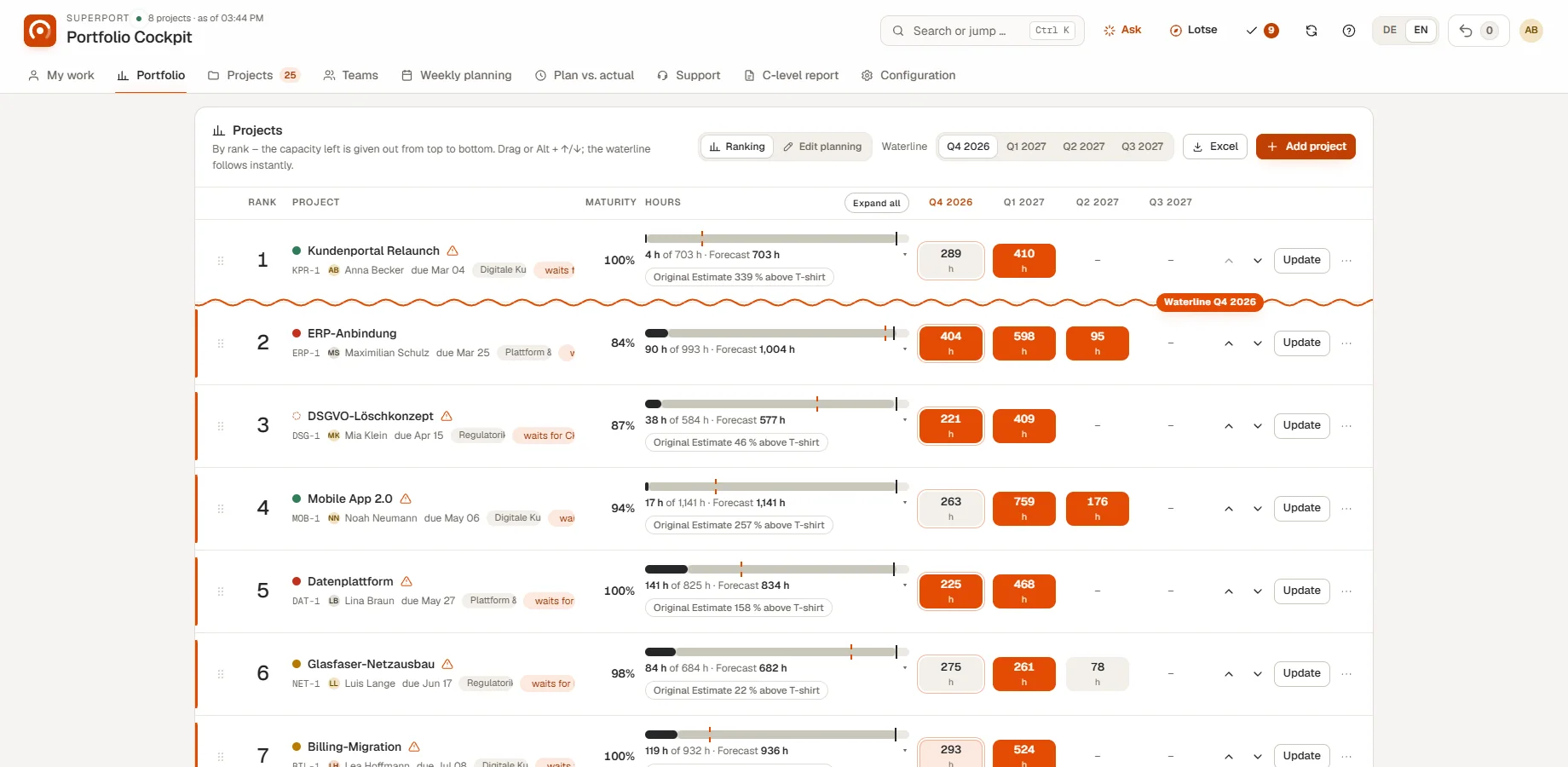
- Open the Portfolio tab.
- Click Add project and add your projects.
- Drag them into one unique ranking, most important first. You can also use Alt + ↑/↓.
Step 5: Enter capacities
- Open Teams and pick a team.
- Open Maintain capacities.
- Enter each person's weekly hours, daily business and location. For people in several teams, set their team shares in %.
People without their own values show Default values – not maintained yet until someone enters their hours. You or your project admins can do this step later; the waterline improves as capacities are filled in.
Where to find the app in Jira
| Where | What |
|---|---|
| Apps → SUPERPORT Portfolio Cockpit | The full cockpit. The tabs you see depend on your role. |
| A project's navigation → Portfolio Cockpit | The cockpit, opened on that project. |
| A work item → Planning check | Team, assignee load, conflicts and dependencies for this work item. |
| Jira settings (⚙️) → Apps → Portfolio Cockpit | The configuration, for Jira admins. |
You're done when…
The first time someone opens the cockpit, a short tour shows them around. They can start it again with ? at the top right.
💬 Need help? Open a request in the SUPERPORT support portal.
Documentation by George Papasotiriou, developer of SUPERPORT Portfolio Cockpit for Jira · SUPERPORT
Still stuck? Our team answers in English, German and Greek.
Open a support request