
Portfolio Cockpit – Admin guide
Open the configuration
Go to Jira settings (⚙️) → Apps → Portfolio Cockpit, or open the cockpit and click the Configuration tab. Both show the same page. Only Jira admins (global permission Administer Jira) can open it.
The sections are listed on the left. Change what you need and click Save; the bar shows what will change, and Discard drops your edits. You see Configuration saved – effective immediately. Every save can be undone and is written to the audit log.
| Section | What you set there |
|---|---|
| Hierarchy & projects | What a project is, and which Jira levels count. |
| Fields & required fields | Which Jira fields hold team, start date, owner, milestone and more, and which are required. |
| Teams | The connection to Atlassian Teams and which teams appear. |
| T-shirt sizes & quarters | Hours per T-shirt size and the quarters people can pick. |
| Planning rules | Person-level values, due date warnings, the sub-task lock, how estimates are spread, health and forecast thresholds. |
| Booking check | Whether people booked enough of their working time. |
| Reminders & notices | Jira notifications about missing values and bookings. Off by default. |
| Locations and holidays | Holiday calendars, working days and company days off. |
| Plan snapshot | When the weekly plan is saved for Plan vs. actual, and how long it is kept. |
| Milestones | Milestones made of fix versions from any space. |
| Dependencies | Which link types count as dependencies, their direction and the "Blocked" status. |
| Roles and permissions | Groups for the roles, the permission matrix and privacy. |
| AI & data protection | The AI switch, features, data minimisation and the AI budget. |
| Usage | Usage counts of the last 30 days. |
| Support & SLAs | Service spaces, support spaces and queues. |
| Capacity | Default weekly hours and default location. |
| Versions & backup | Restore an earlier configuration, export or import it. |
| Audit log | Every change, with person and time. |
Set up the hierarchy
In Hierarchy & projects choose what a project is:
- Projects are spaces: every Jira space is a project. Works on every Jira edition.
- Projects are work items: an issue type (for example "Project") in the Plans hierarchy. Recommended for Jira Premium.
Then switch on the levels that matter and give each a role:
| Role | Meaning |
|---|---|
| Themes | Optional level above the projects. Groups projects into themes in the portfolio. |
| Rough planning | Carries T-shirt size and target quarters while nothing is estimated yet. At most once. |
| Structure | Structures a project. |
| Estimation & time tracking | Original estimate, remaining estimate and logged time come from here. Exactly one level. |
| Tiny tasks | Their time counts towards the work above them. |
A switched-off level is skipped; what lies below still belongs to the project. Optional: Automatically remove completed projects (status category "Done") from the portfolio.
Map fields
In Fields & required fields map team, start date, owner and milestone to your Jira fields. Leave empty what you do not have. Only required fields are checked in data quality.
- App field (by Portfolio Cockpit): values are maintained in the app. Portfolio Rank is read-only on Jira screens and usable in JQL.
- Jira field: your admins manage its options freely in Jira.
If a yellow notice Mapped fields are missing in Jira appears, a mapped field was deleted or is hidden from you. Choose another field or clear the mapping.
Connect Atlassian Teams
In Teams you see the connection status, for example Connected · 6 teams · synced ….
- Who belongs to a team is maintained in Atlassian Teams. The cockpit syncs every 5 minutes; Sync now syncs at once.
- Under Show in the cockpit choose All or Only teams with tasks, or pick teams. Hidden teams disappear from Teams, weekly planning, capacity and key figures; their tasks still count in the projects.
- If you see Teams found, but no members readable, an organization admin has to allow access to Teams (Teamwork Graph) when installing or updating the app. Until then, a member is whoever has a share under Teams → Maintain capacities.
Decide who sees what
Roles are checked on the server on every call. Anyone in several groups gets the rights of all their roles. Defaults:
| Role | Who | Sees | Can change |
|---|---|---|---|
| Employee | Every Jira user | My work | Own worklogs and missing values on own work items |
| Project admin | Jira groups you map | Portfolio, projects, teams, weekly planning, plan vs. actual, support | Capacities, weekly plans, dispatch, health; individual values of their own teams |
| Management | Jira groups you map | All of the above plus the C-level report | Also the ranking; individual values of all teams |
| Jira admin | Administer Jira | Everything | Configuration, AI switch, audit log. Individual values of people only when you grant them deliberately. |
- Open Roles and permissions.
- Search and add Jira groups for Project admin and Management.
- Adjust the permission matrix (tabs and actions) if needed.
- Under Privacy: individual values of people choose per role None, Own teams or All teams.
- Click Save.
Planning rules
| Setting | Default | What it does |
|---|---|---|
| Show person-level values | On | Off: only totals without names in Teams, weekly planning, plan vs. actual, projects, support, the booking check and the report. |
| Warning on exceeded due date | On | Flags overdue work in missing values, reminders and the report. |
| Lock time tracking & estimates on sub-tasks | Off | On: time logged on sub-tasks is removed again and the work item gets the comment "Time tracking on sub-tasks is locked – please log time on the story." (at most once a day). Estimates entered on sub-tasks are set back to zero. |
| Distribution of estimates in a period | By free capacity | How a task's hours are spread between start and due: Linear (working days), At start, At due date or By free capacity. |
| Health rhythm (days) | 7 | After how many days a health update counts as due. |
| Forecast warning % | 10 | From how far above the original estimate a forecast counts as extra effort. |
| Highlight deviation from % | 15 | From which deviation between estimate and time spent a work item is highlighted. |
Booking check, reminders and notices
Booking check compares booked hours with each person's possible working time up to today (weekly hours minus public holidays and absences). Defaults: at least 90 % booked, escalation from 20 % missing, a grace period of 2 workdays. It needs person-level values.
Reminders & notices are prepared and previewed, but nothing goes out until you switch it on:
- Reminder about missing values: one message per responsible person, Mondays or Daily.
- Booking check: notices and escalations: a notice to the person below the minimum, escalation to the team's responsible people, project owners or management.
Notices are delivered as Jira notifications. No external service is used, and every run is logged.
Locations, holidays and capacity defaults
- Locations and holidays: create a location (for example "Hamburg"), pick its Holiday calendar and Working days, and add Company days off. Each person gets a location under Teams → Maintain capacities.
- Calendars contain the nationwide public holidays of a country, not states or regions. Add regional days as company days off. Lunar-calendar holidays are computed and can differ by a day; deselect them and add a company day if needed.
- Capacity: default weekly hours (40) and default location for people whose capacity is not maintained yet.
Plan snapshot, milestones and dependencies
- Plan snapshot: once a week the app saves the weekly plan for Plan vs. actual. Choose the day and time (Jira site time zone) and Keep for 12, 24 or 36 months (default 24). Older weeks are deleted.
- Milestones: bundle fix versions from any spaces under one name and date. Each fix version belongs to at most one milestone.
- Dependencies: choose the Link types that count as dependencies and their direction. By default the item on the outward side is the prerequisite (A "blocks" B). Set which status counts as Blocked; without a choice, a status named "Blocked" is used.
Set up support
In Support & SLAs choose where support work comes from:
- Service spaces (Jira Service Management). SLAs are read from Jira Service Management; there is nothing to set for them here.
- Software and business spaces as support: all work items of these spaces count as support.
- Support queues (only part of a space): for single work types or labels, for example bugs labelled "support".
Support comes before every project: its hours are reserved from team capacity first. Optional: add the workflow validator Original Estimate required (Portfolio Cockpit) to the "In Progress" transition of service workflows to enforce an estimate.
Switch AI on or off
All numbers, traffic lights, questions and checks work fully without AI. AI features are optional and off by default. Only Jira admins can change this.
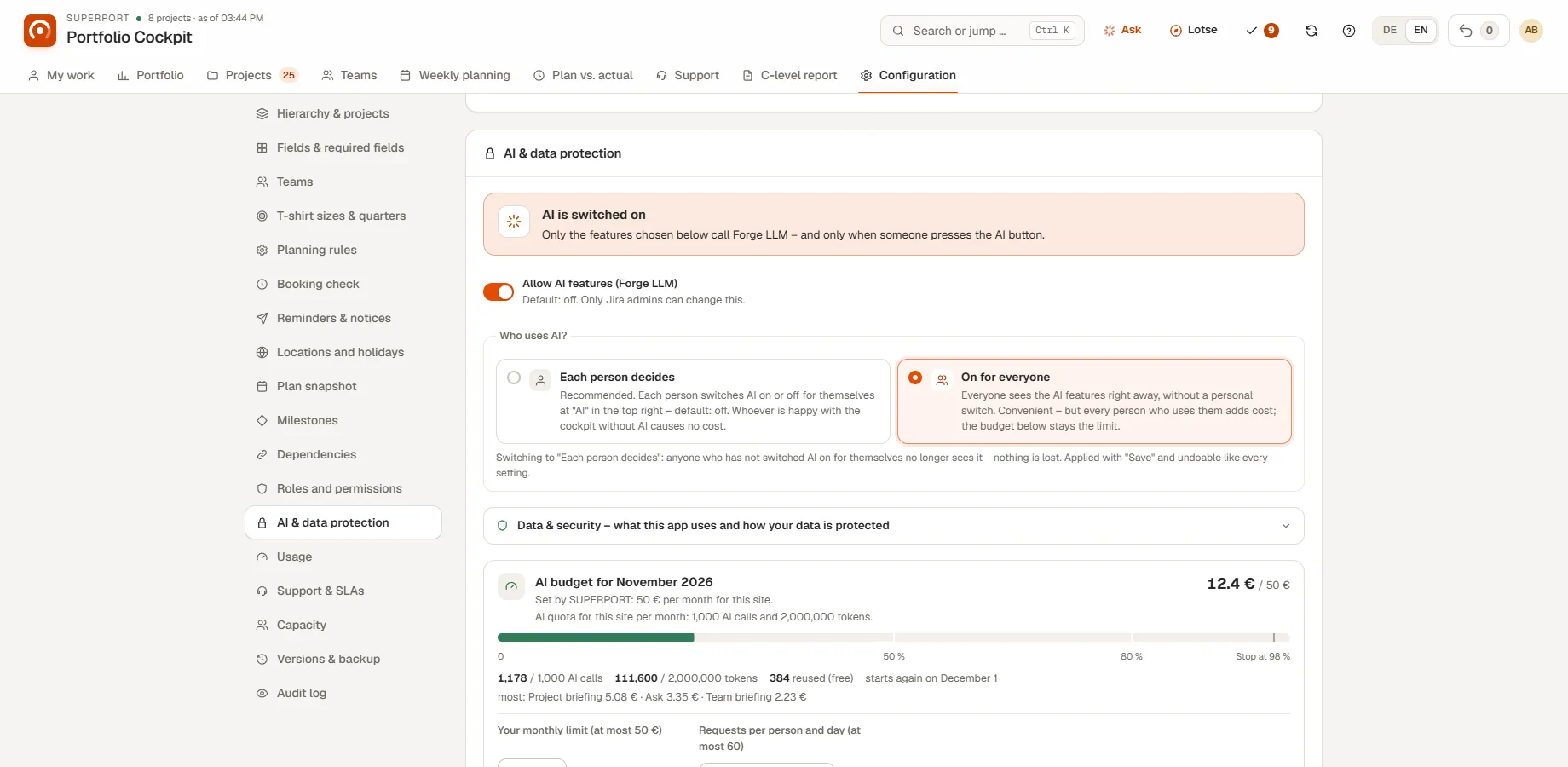
- Open AI & data protection.
- Switch on Allow AI features (Forge LLM) and read the summary. Confirm with Yes, switch AI on.
- Under Who uses AI? choose Each person decides (recommended: each person switches AI on for themselves at AI in the top right; off at first) or On for everyone.
- Under Which AI features keep only the features you want.
- Under Data minimisation decide whether person names and texts from Jira may be sent. Both are off by default.
- Click Save.
Available AI features, each with its own switch:
- Free AI answers in "Ask" and the AI briefing in project details
- Draft health updates with AI
- Executive summary in the C-level report
- Weekly planning: best combination of the Optimize suggestions
- Missing values: suggest a value from similar work items
- Support: suggest team and person per ticket
- Plan vs. actual: what happened and what to do?
- Teams: one-paragraph briefing; Projects: AI briefing
- My work: worklog comments and week text
- "I want …": map free wishes to an answer card; Estimate like before: what helped in similar work
- Support playbooks: draft help article and standard reply
- Lotse: AI reading of the verified answer
How AI behaves
- AI is only called when someone presses an AI button. There are no automatic or nightly AI runs.
- The AI only gets data the asking person may see in Jira. Links, e-mail addresses and anything that looks like a password, token or key are removed first.
- The AI cannot change anything in Jira. It only suggests; only what a person confirms is written.
- Every number in an AI answer is checked against the cockpit's own figures. Answers are marked "AI-generated – please verify".
- Switching AI off stops every AI call at once and deletes stored AI summaries.
AI budget
AI usage is paid by SUPERPORT. Each site has a monthly AI budget set by SUPERPORT (by default 20 € per site and month from December 2026), a quota of 1,000 AI calls and 2,000,000 tokens per month, and at most 60 AI requests per person and day. You can lower the monthly limit and the daily requests, but not raise them. The budget meter shows this month's usage. At 98 % of the budget or 100 % of the quota, AI pauses until the 1st of the next month; the cockpit keeps working with its own rules.
Usage, versions and the audit log
- Usage: counts per day and event for the last 30 days, for example how often a view was opened. No people, no content. Deleted after 30 days.
- Versions & backup: every saved configuration is kept as a version (the latest 30). Click Restore to go back. Export saves the configuration as a file; Import loads it on another site, where you review and save it.
- Audit log: every change with time, person and action, for example Rank changed, Capacities changed, Plan written to Jira, Report published, AI switched on, Configuration changed.
Publishing to Confluence
The C-level report can be published as a Confluence page only into Confluence spaces approved for your site, and the app must also be installed in Confluence. This is off by default, and the current version has no setting on the configuration page to approve spaces. Share the report as a PDF or Excel file instead. If you need Confluence publishing, tell us in the support portal.
Licence, maintenance and service status
- Licence: if Atlassian reports an inactive licence, users see Licence not active and are asked to contact their Jira admin. Manage the licence under Jira settings → Apps → Manage apps.
- Maintenance: in an emergency SUPERPORT can pause the app or its AI features for all customers. Users then see Temporarily unavailable or Changes are paused. Nothing saved is lost, your Jira is not affected and no data is sent anywhere. Follow the status page.
Uninstall the app
- Optional: export the configuration under Versions & backup.
- Go to Jira settings → Apps → Manage apps → Portfolio Cockpit → Uninstall.
The app's storage (configuration, capacities, health, audit log, snapshots) is deleted by Atlassian according to its Forge data retention. Data written into Jira (worklogs, dates, assignees, estimates, links) stays your Jira data. The three app fields disappear with the app.
💬 Need help? Open a request in the SUPERPORT support portal.
Documentation by George Papasotiriou, developer of SUPERPORT Portfolio Cockpit for Jira · SUPERPORT
Still stuck? Our team answers in English, German and Greek.
Open a support request