
Workflow Analyzer – Admin guide
Understand roles and permissions
The app works out each user's role from their Jira permissions, checked on the server on every call. There is nothing to configure.
Role | Can see | Can change |
|---|---|---|
Jira admin | Every project's page and the site-wide page | All workflows, including company-managed workflows shared by several projects, and bulk changes. Turns the AI features on or off. |
Project admin | The app page of their own project | Team-managed workflows of their own project. Company-managed workflows: plan and validate only, then hand over to a Jira admin. |
Anyone else | Nothing ("No access to this page") | Nothing |
Every change runs with the permissions of the person who confirms it. Creating Jira tasks from findings also needs the "Create issues" permission in the project.
Analyse every workflow on the site
Open Jira settings › Apps › Workflow Analyzer & Optimizer for Jira (site-wide).
Click Scan all workflows. The scan only reads: every workflow, its rules and which projects use it. It takes a few seconds per 100 workflows.
Work with the tabs as in a project. On the site-wide page the Workflow selector shows which projects use each workflow.
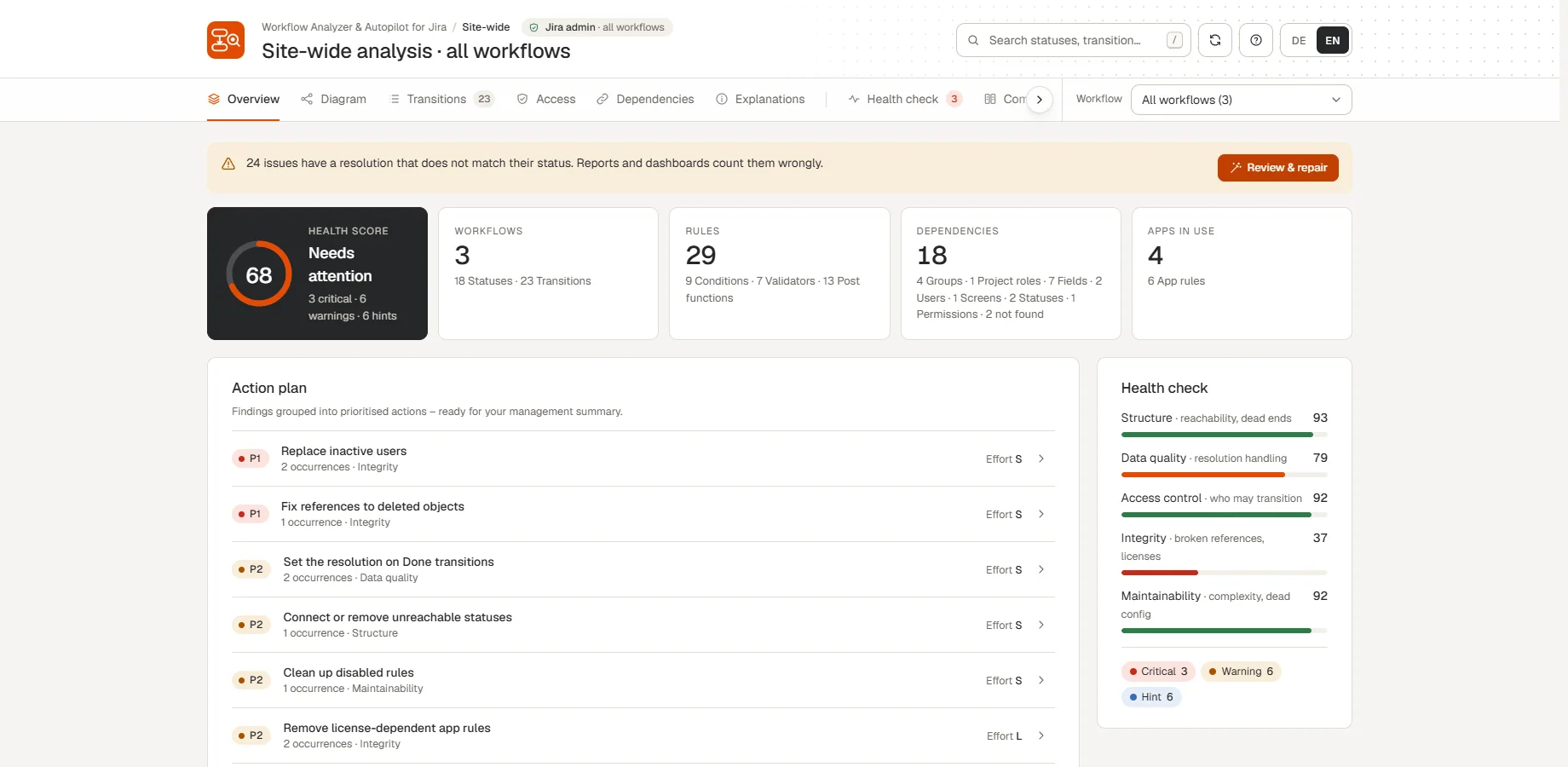
The site-wide page has the same tabs as a project, with these differences:
Bulk Autopilot replaces Autopilot: change many workflows at once.
Settings holds the AI features switch.
Flow (live issue counts) and Changes (snapshots, daily monitoring) are only on project pages.
Dependencies › Check a list checks every workflow on the site, so you can see whether a group is still used anywhere before you delete it.
Health check › Issue resolutions covers issues in all projects you can see.
Change company-managed and shared workflows
Only Jira admins can apply plans to company-managed workflows. Project admins can plan and validate such a change and hand it over to you.
Open the app in the project, go to Autopilot and select the plan.
Review the operations, the preview and the health score before → after.
If the workflow is shared, the plan names every project that uses it (projects you cannot see are counted, not named). Tick I understand – apply for all these projects only if the change is right for all of them. Otherwise, give the project its own workflow first.
Click Apply to Jira and confirm. A backup and a snapshot are stored, and Roll back is ready.
Change many workflows at once
On the site-wide page, open Bulk Autopilot.
Under Target workflows, filter by what the workflows use, tick only active if needed and click Select shown, or pick workflows one by one (up to 200 per bulk change).
Under Change, choose a template: Remove group/role/user, Replace group/role/user, Resolution on Done, Restrict transitions, Required fields or Operations JSON. With AI on, Describe (AI) lets you write the change in your own words.
Click Dry run for N workflows. Every workflow gets its own plan, Jira validation and health impact. Nothing is changed in Jira yet.
Review the results, confirm shared workflows, and click Apply to N workflows. You see live progress, and you can Stop after the current workflow.
To undo, click Roll back N applied. Each workflow is restored on its own.
Recent bulk changes lists earlier runs. Team-managed workflows are skipped automatically by Resolution on Done, because Jira sets the resolution there.
Turn the AI features on or off
The AI features are off by default. Only Jira admins can change this.
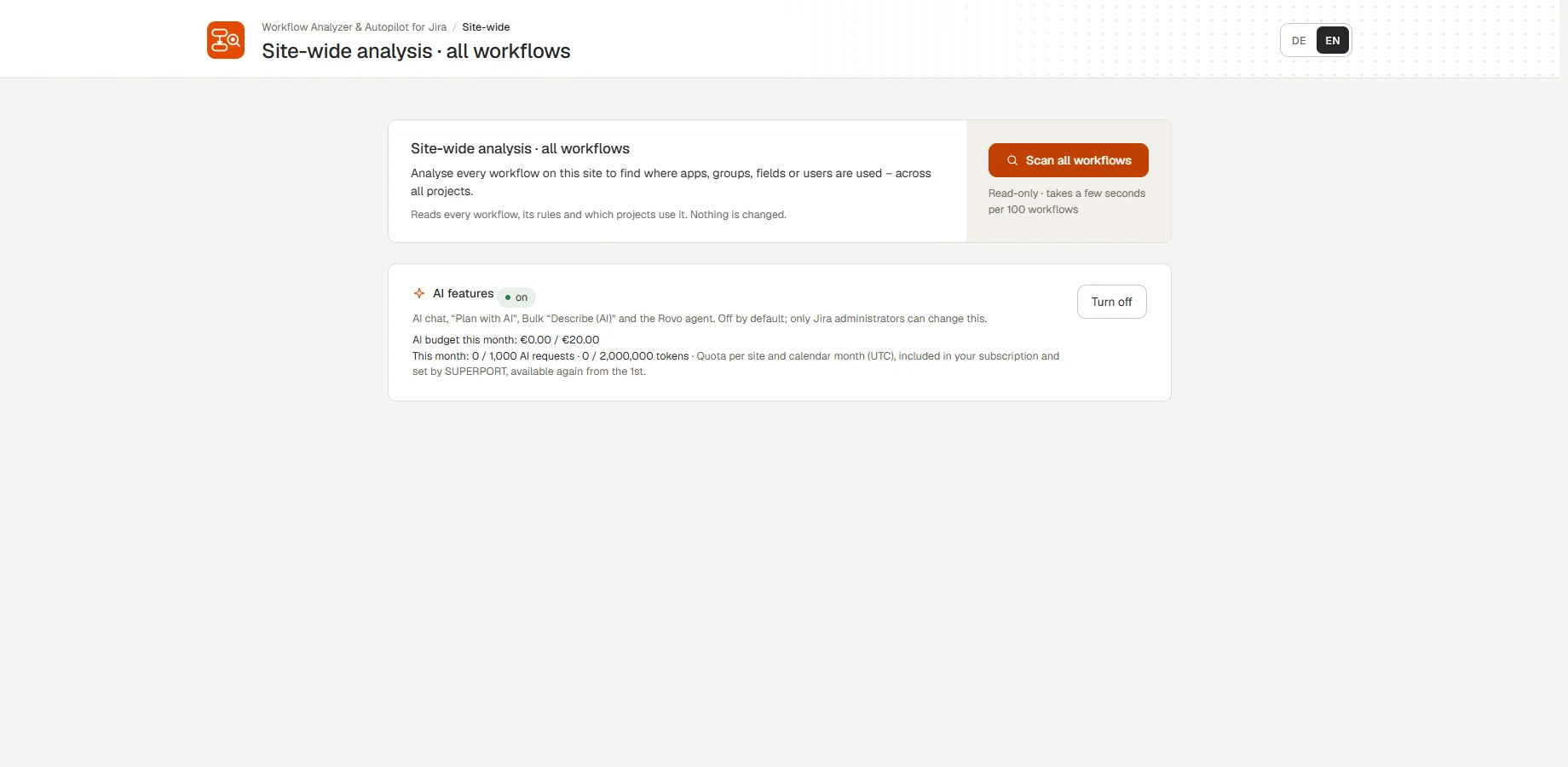
Open the site-wide page. The AI features card is on the start page, and after the scan in the Settings tab.
Click Turn on (or Turn off).
Tell your project admins. The AI features appear for them after they reload the page, or when they return to the open app.
What the switch controls | What works without AI |
|---|---|
|
|
While AI is off, the app hides every AI entry point. The AI assistant tab is called Explanations.
The Rovo agent also needs Rovo to be enabled on your site.
Repair issue resolutions without notification mails
Jira admins can repair the resolution of any issue silently: only the Resolution field changes, the status stays, no notification mails are sent and the change appears in the issue history. Project admins can repair only issues whose edit screen has the Resolution field, and Jira may send mails. See User guide › Repair issue resolutions for the steps.
See who changed what
The app has no separate audit log page. Instead, every change is recorded where it happened:
What | Where you see it |
|---|---|
Change plans: who created, applied or rolled back a plan, and when | Autopilot › Change plans (project) and Bulk Autopilot › Recent bulk changes (site) |
Issue resolution repairs | Health check › Issue resolutions › Repair history |
Snapshots and daily monitoring | Changes tab of each project |
The AI switch | AI features card: "Last changed … by …" |
Workflow changes themselves | Jira, as with any workflow change made by that user |
Manage the licence
Workflow Analyzer & Optimizer for Jira is a paid app, billed by Atlassian. Sites with up to 10 users can use it for free.
Start a free trial or subscribe under Apps › Manage your apps.
Without an active licence, the app shows "Workflow Analyzer & Optimizer for Jira needs an active licence" and the daily monitoring pauses. Saved plans, snapshots and notes are kept.
Check the app status
If SUPERPORT has to pause the app for maintenance or a security issue, users see one of two notices:
Under maintenance "Workflow Analyzer & Optimizer for Jira is temporarily unavailable". Nothing saved is lost.
Changes paused "Changes are paused for maintenance to keep your data safe." Viewing keeps working.
Follow the current status on superapps.statuspage.io.
Export data
Documentation: the Export tab creates HTML, PDF, CSV and JSON files of the analysed workflows (see the User guide). Exports contain names of users, groups and fields, so keep them internal.
App data: the app has no export or import of its own data (plans, snapshots, notes). Your workflows themselves always stay in Jira.
Uninstall the app
Open Apps › Manage your apps, find Workflow Analyzer & Optimizer for Jira and click Uninstall.
Workflow changes you applied stay in Jira. Roll back any plan you don't want to keep before you uninstall: the backups are deleted with the app.
Atlassian deletes the app's stored data after its retention period (see Security & privacy).
Need help? Contact us through the SUPERPORT support portal.
Documentation by George Papasotiriou, developer of Workflow Analyzer & Optimizer for Jira · SUPERPORT
Still stuck? Our team answers in English, German and Greek.
Open a support request