
Screen Self-Service – Admin guide
Open the configuration
Go to Jira settings → Apps → Screen Self-Service for Jira. The page has two tabs:
Configuration - all settings of the app
Audit log - every change made through the app, on all projects
Change one or more settings, then choose Save in the bar at the bottom. Discard drops your unsaved changes. The app confirms with Configuration saved.
Settings at a glance
Setting | What it does | Default |
|---|---|---|
Projects that can use the app | All projects, or only the Selected projects you list by key. Jira admins can always use the app. | All projects |
Copy screens from other projects | Lets project admins search every screen on the site and copy it into their project as a template. | On |
Delete unused screens and screen schemes automatically | Deletes objects created by the app after they have been unused for the number of days you choose. | Off (suggested: 30 days) |
Audit log retention | Deletes older audit entries automatically. | 24 months |
AI features (Rovo agent) | Optional. Turns the Rovo agent "Screen Assistant" and every Ask Rovo entry point on or off. | Off |
Shared screens and schemes | Always Locked, with a notice. Project admins can't edit objects other projects also use, but they can copy them. | Fixed |
Choose which projects can use the app
Under Projects that can use the app, choose All projects or Selected projects.
For selected projects, type the Project keys, separated by commas (for example
PROJ, SUP, HR).Choose Save.
Allow or stop copying screens from other projects
With Copy screens from other projects on, project admins can search every screen on the site by name and copy it into their project. The original is never changed. Turn it off to limit them to their own project's screens; they then see Copying from other projects is off.
Clean up unused screens automatically
Under Delete unused screens and screen schemes automatically, switch Active on.
Set Delete after … days unused with the buttons or a quick pick (14, 30, 60 or 90). You can choose 1 to 365 days.
Choose Save.
This only affects screens and screen schemes created by the app. Anything else is never deleted by the app.
Project admins see the deletion date for each object on their Unused tab. Assigning an object again cancels its deletion.
The clean-up runs once a night. Every deletion is written to the audit log as "Screen Self-Service for Jira (auto-deletion)".
Set how long the audit log is kept
Under Audit log retention, choose 12 months, 24 months, 36 months or Never (keep everything). Older entries are deleted automatically every night.
Turn the optional AI features on or off
The app includes an optional Rovo agent called Screen Assistant. It can list a project's screens, explain a screen, find unused screens, and add or remove a field (after the user confirms). It follows the same permission and safety rules as the app.
Switch | What happens |
|---|---|
Off (default) | All Ask Rovo buttons and Rovo prompts in the Ctrl+K palette are hidden. The agent refuses every request and tells the user where a Jira admin can turn it on. |
On | Project admins can use the Screen Assistant. Rovo must also be enabled for your site. |
Permissions: who can do what
Who | Jira permission | What they can do in the app |
|---|---|---|
Project admin | Administer Projects for the project | Manage the screens, screen schemes and transition screens that belong to their project alone, if the project may use the app. |
Jira admin | Administer Jira | Everything a project admin can, in any project, plus the configuration and the site-wide audit log. |
Everyone else | - | No access. The app shows Only project admins can manage screens. |
The app checks these permissions in Jira on every action. It never does more than the person using it may do.
Screens, schemes and workflows used by other projects are read-only. This is checked again against live Jira data right before every change.
If Jira can't confirm that an object belongs to one project only, the app changes nothing.
Only objects the app created can be deleted, and only when unused. Other unused objects can only be deleted by a Jira admin.
Review the audit log
Open the Audit log tab on the configuration page. It lists every change made through the app on all projects, including configuration changes and automatic deletions. Use Filter the log to search, and open an entry to see Before and After.
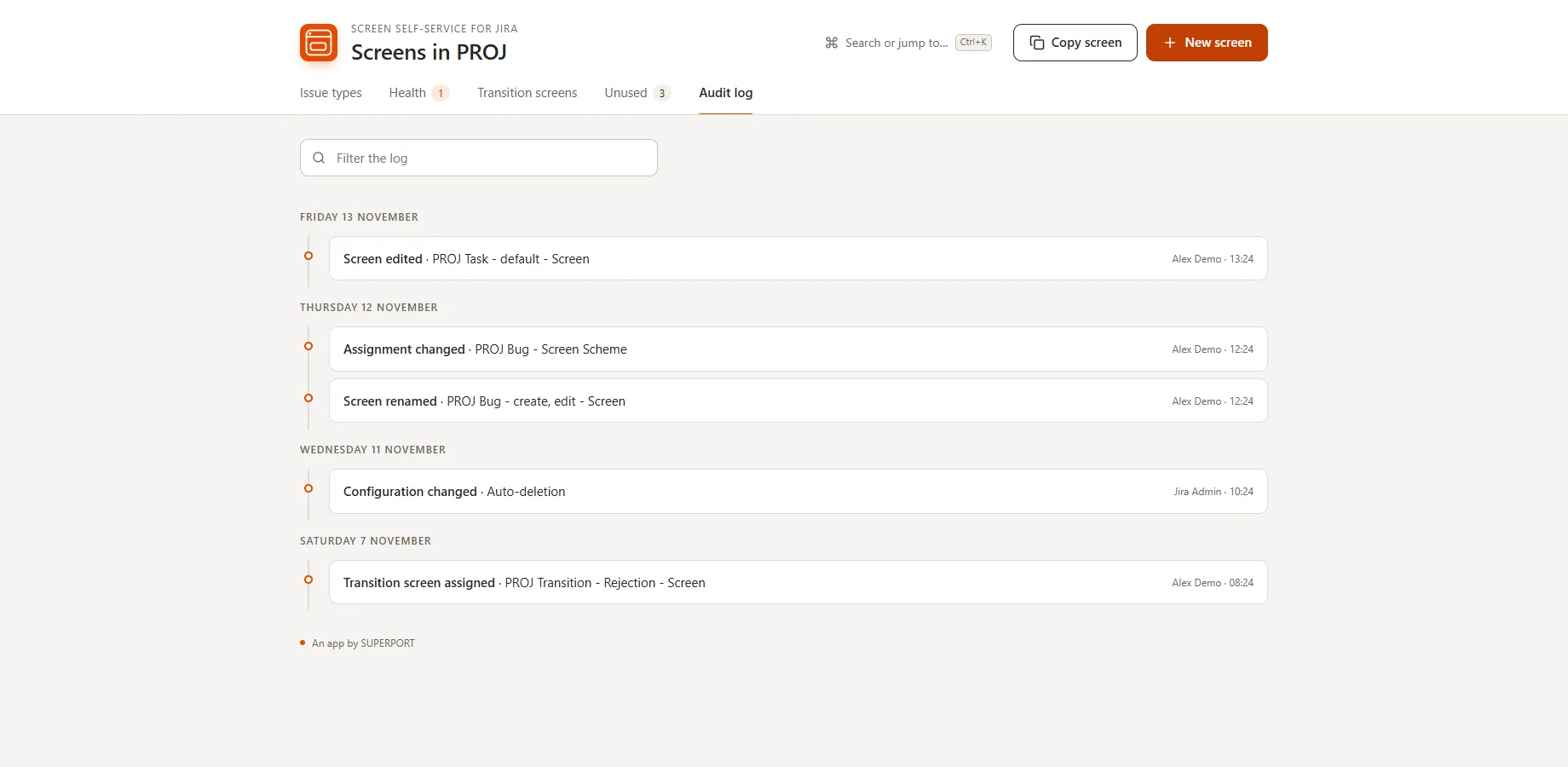
The log stores account IDs only. Names are looked up when you open the log.
When an account is closed, its entries show Former user.
Licence
The app is free for sites with up to 10 users. Larger sites get a 30-day free trial, then a per-user subscription billed through Atlassian.
Without an active licence, the app shows Screen Self-Service for Jira needs an active license and changes nothing. Your Jira screens and everything you set up keep working as usual.
To start a trial or renew, go to Apps → Manage apps in Jira.
Maintenance and status
In rare cases, SUPERPORT pauses the app to keep your data safe, for example during an incident. Users then see one of these notices:
Notice | What it means |
|---|---|
Read-only Changes are paused for maintenance to keep your data safe. | Everyone can still view everything. Editing comes back as soon as possible. |
Under maintenance Screen Self-Service for Jira is temporarily unavailable | The app is paused. Nothing saved is lost, and your Jira screens keep working. |
Follow updates on the SUPERPORT Apps status page.
Data export and uninstall
The app has no data export. Screens and schemes created through the app are normal Jira configuration and stay in Jira if you uninstall the app. The app's own data (settings, audit log, undo records) is deleted by Atlassian after uninstall. See Security & privacy.
Large sites and platform limits
The app runs on Atlassian Forge, which limits compute time, storage and API requests for all apps.
On large sites, the overview of where screens and schemes are used can take a moment to build.
When Jira answers "too many requests", the app slows down and retries by itself, so a change may take longer.
If a limit is still reached, the app shows an error. The audit log shows which changes were applied. Try the rest again a little later.
Documentation by George Papasotiriou, developer of Screen Self-Service for Jira · SUPERPORT. Need help? Open a request in the support portal.
Still stuck? Our team answers in English, German and Greek.
Open a support request