
Group Self-Service – Admin guide
Open the admin page
Go to Jira settings (⚙️) → Apps → Group Self-Service for Jira. The page has three tabs: Configuration, Changes to apply and Audit log (all projects). When changes wait for a Jira admin, the page opens on Changes to apply.
On a new site, the Get started in 3 steps checklist is shown first (see Getting started). Bring it back any time with Setup checklist at the top.
Who can do what
Person | How the app recognises them | What they can do |
|---|---|---|
Jira admin | Administer Jira global permission | Everything: configuration, change queue, all audit logs, export and import. Their own group changes apply at once with their own rights, in every project. |
Project admin | Administer Projects in the project | Manage the groups and roles of their own project only, within your rules. |
Project member | Can browse the project | See their own groups on My groups and request access (if turned on). |
Auditor | Member of an Auditor group | Read and export the audit log of all projects, nothing else. |
Decide how group changes are made
Atlassian only lets Jira admins create groups and change their members. So in the section How group changes are made you decide what happens with project admins' group changes:
Mode | What happens |
|---|---|
Jira administrators apply changes | Project admins' changes (new groups, additions, removals, approved access requests) and the automatic removals wait under Changes to apply. A Jira admin applies or rejects them. |
Apply project admins' changes automatically | The same changes run at once, with the account of the Jira admin who switched this on, as if they applied them by hand. |
In both modes: your own changes as a Jira admin always apply at once, and project role changes always run with the project admin's own rights.
Switch on automatic changes
Under Apply project admins' changes automatically, click Use my account. (Another admin's account is in use? Click Use my account instead.)
The app first checks that Jira lets it act for your account. The section then shows On, with your account (since …).
Paused? Automatic changes pause by themselves when the account can no longer apply changes. Changes then wait under Changes to apply again. The section shows why:
Shown reason | What to do |
|---|---|
… is no longer a Jira admin. | A current Jira admin clicks Use my account. |
the account of … is deactivated. | A current Jira admin clicks Use my account. |
… withdrew the app's access to their account. | That admin (or another) clicks Use my account and allows access when Jira asks. |
Changes that were already waiting when you switch on automatic changes stay under Changes to apply.
Allow the app to act as you
Group changes run with your own Jira rights. Jira asks every Jira admin once to allow this. When the page shows Allow the app to act as you, click Grant access and confirm Allow access in Jira's prompt. If Jira shows no prompt, reload the page and allow access when Jira asks.
Apply or reject waiting changes
The tab Changes to apply (also shown as N waiting at the top) lists everything that waits for a Jira admin, from all projects. Each entry shows the group and project, who asked and when, and the reason. Automatic marks the hourly end-date job and the deactivated-account clean-up; via Rovo marks the Rovo agent.
Apply runs the change with your rights and checks every rule again. If the result is already in place, the change is marked as applied without an error.
Reject asks for an optional Note for the project admin. Rejecting an Access ended removal keeps the person and removes their end date. Rejecting an Account deactivated removal keeps that account; the clean-up does not ask again.
Tick several entries, or Select all, to apply or reject up to 100 at once. Each change gets its own result. Anything that fails stays in the list with the reason.
On each project page, Jira admins also see N changes by project admins wait for a Jira admin (all projects) with a button that opens the list. Decided changes stay visible under Recently decided for 90 days.
Choose the projects
Under Enabled projects, choose All projects (default) or Selected projects only and pick the projects. In other projects, project admins see The app is not enabled for this project.
Naming convention
Groups are always named atlassian-<PROJECTKEY>-<name>. Project admins only choose the last part (up to 30 characters). This is fixed. Renaming and deleting are not possible in the app; delete groups in Atlassian Administration when needed.
Protect groups
Blocked groups
The app can neither show nor change blocked groups.
Always blocked: Atlassian core groups for administration (for example
site-admins,jira-administrators) and the product access groups (for examplejira-software-users,confluence-users). You cannot remove them from the list.Additionally blocked: your own additions. Click Block a group and enter a group name or a pattern with a
*at the start or end, likejira-admins-*.
Synchronised groups (IdP/SCIM)
Under Synchronised groups, add the groups (or patterns) your identity provider manages, for example from Entra ID or Okta. The app shows them as IdP sync: members are visible, but nobody can change them in the app.
Roles & features
Setting | Default | What it does |
|---|---|---|
Show the "My groups" page to project members | On | Members see their own groups (read-only) in the project tab My groups. |
Project admins manage their project's roles ("Roles" tab) | On | Project admins add and remove people and groups in their project's roles, at once and with their own Jira rights. Protected groups stay off-limits. |
Allow time-limited memberships | On | Project admins can set end dates. Ended memberships are removed by the hourly job (at once with automatic changes, otherwise as a waiting removal). |
Project admins can only add people to groups that grant access within their own project (scope check) | On (recommended) | A project group that also appears in another project's permission scheme or roles is locked for additions by project admins. Jira admins can still change it; removing people always works. |
Auditor groups | None | Members of these groups can read and export the audit log of all projects. They find it under Apps → Group audit log. Open the audit log page takes you there. |
AI features (Rovo agent)
The Rovo agent Group Self-Service for Jira lets project admins manage groups in a chat. It is Off by default.
In the section AI features (Rovo agent), tick Turn on AI features.
Click Save.
While it is off, the Ask Rovo button is hidden and the agent refuses every request. When on, the agent uses the same permission checks as the app, confirms before every change, and adds at most 10 or removes at most 5 people per request. AI results can be wrong and must be reviewed.
Governance & automation
Setting | Default | What it does |
|---|---|---|
Project members can request access to project groups | On | Members can ask to join a group from My groups, with a reason and 7, 30 or 90 days or no end date. Project admins decide. |
Periodic access review | Off | Every 3, 6 or 12 months, project admins confirm who still needs each group. Due groups show Review due. |
Remove deactivated accounts from app groups automatically (daily) | Off | Removes deactivated accounts from the groups this app manages, never from blocked or IdP groups. Click Who would be removed? for a dry run first, then Switch on. Without automatic changes, each removal waits under Changes to apply (reason Account deactivated). |
Settings take effect after you click Save.
Compliance overview
The Compliance overview shows, across all projects: access reviews due, memberships that end within 14 days, open access requests, and the status of the Confluence page index. Click a card for details. Rebuild rebuilds the Confluence index in the background, in hourly steps.
Audit log and retention
Every change is written to the audit log: groups created, people added and removed, end dates, requests, reviews, role changes, waiting changes, configuration changes, exports and imports. Entries cannot be edited. The tab Audit log (all projects) lets you filter by Period, Project, Group, Action or Person and Export CSV.
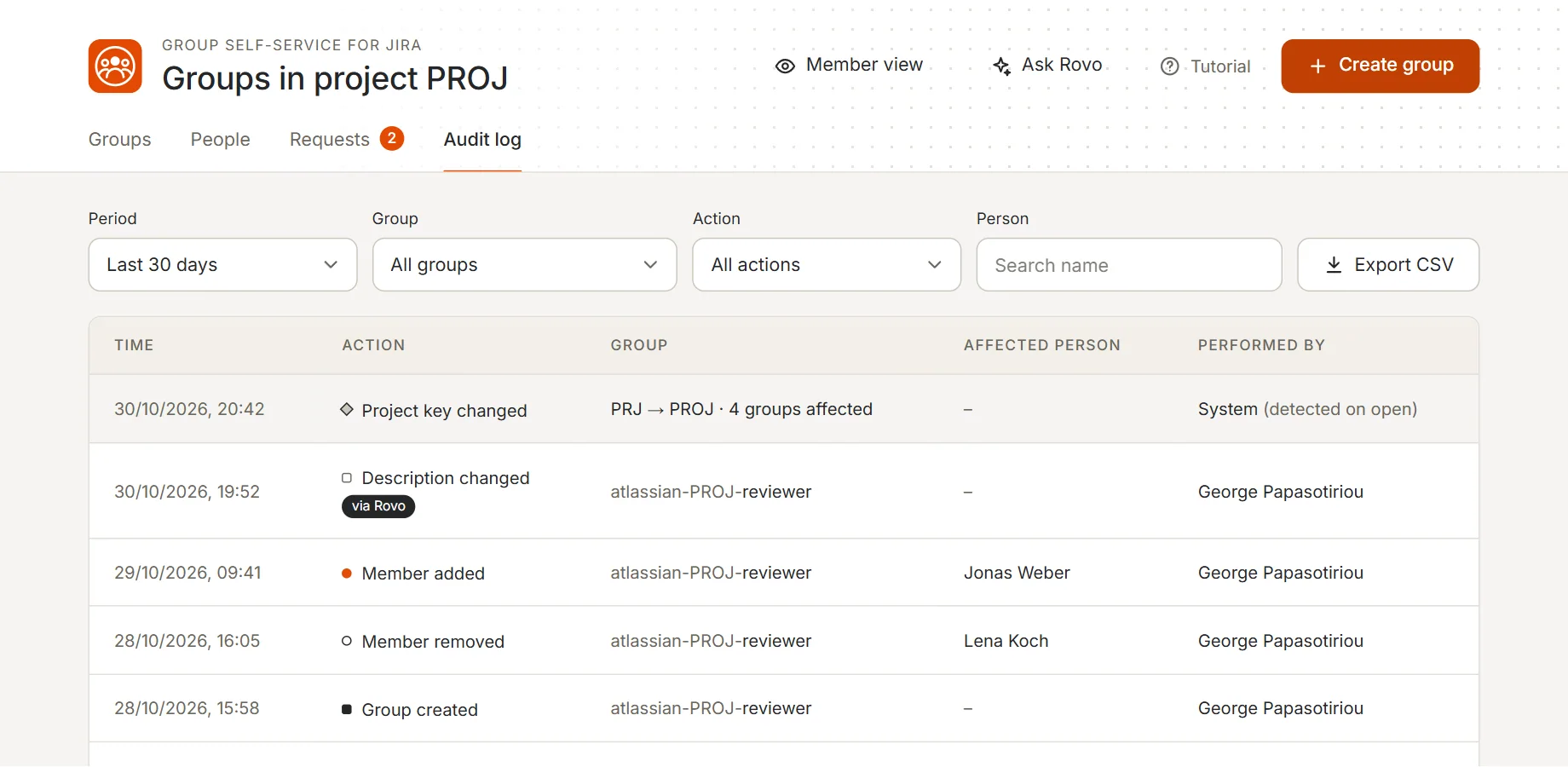
Under Audit log retention choose Never delete (default) or Delete after a number of months. Older entries are removed automatically every day. This is the only way entries are ever deleted.
Save and undo configuration changes
Nothing takes effect until you click Save. Discard drops unsaved changes. Each save is logged in the audit log, and you can undo it from the message that appears.
Scheduled jobs
Job | How often |
|---|---|
Remove memberships whose end date has passed | Hourly |
Build the Confluence page restriction index (only if installed in Confluence) | Hourly |
Remove deactivated accounts (if switched on) | Daily |
Delete audit entries older than the retention period (if set) | Daily |
Licence
Group Self-Service for Jira is a paid app. Without an active licence, every page shows This site has no active licence for Group Self-Service for Jira, so changes are switched off. You can still view everything. The scheduled jobs do not run either. To turn changes back on, start a free trial or subscribe under Jira settings → Apps → Manage apps.
Maintenance and service status
If SUPERPORT ever has to pause the app to keep your data safe, users see a maintenance page or a notice that changes are paused, with a link to the status page. Nothing you saved is lost. Follow updates on superapps.statuspage.io.
Move data to another installation (export & import)
Use Export & import data on the Configuration tab to move everything the app has stored to another installation on the same site: settings, group assignments, descriptions, end dates, requests, reviews, waiting changes and the complete audit log. Only Jira admins see this section.
Export
Click Export all data.
Enter a Passphrase of at least 12 characters and type it again under Repeat passphrase.
Click Encrypt & export and save the file.
Import
In the other installation, click Import from file… and pick the file.
Enter the passphrase and click Decrypt.
Check the summary: number of records and audit entries, who exported it and when.
Tick I want to import this data into this installation. and click Import.
Only encrypted exports can be imported, and only on the same Atlassian site.
Records that already exist in this installation are replaced by the ones in the file. Audit entries that already exist are skipped, so importing twice is safe. If an import stops partway, run it again.
Two things are not exported on purpose: the account used for automatic changes and the setup checklist. Set them up again in the new installation.
Both export and import are recorded in the audit log.
💬 Need help? Open a request in the SUPERPORT support portal.
Documentation by George Papasotiriou, developer of Group Self-Service for Jira · SUPERPORT
Still stuck? Our team answers in English, German and Greek.
Open a support request