
Custom Field Self-Service – Admin guide
Roles and permissions
The app checks every person's role with Jira on the server, for every action. Hiding a button in the browser is only for clarity, never for security.
Role | Can |
|---|---|
Jira admin | Configure the app in the control centre, see the health of every custom field on the site, change fields directly (logged and undoable), approve requests. |
Project admin | See the fields their space uses; change options of fields only their space uses (directly or with approval, as you decide); request new fields and other changes; decide requests from their team (first stage); undo their own changes as a request. Field health shows only their space. |
Everyone else | Ask for a field from a work item through the Field Assistant (when the AI features are on). The space's project admins decide first. |
Open the control centre
Go to Settings (⚙️) → Apps → Custom Field Self-Service for Jira. The control centre has four tabs: Approvals, Audit log, Configuration and Health. Select Tour for a one-minute walk-through.
Banners at the top warn you about things to fix, for example Test settings are on: switch them off before real use, or that there is only one approver. When safe mode is on, the header shows Safe mode on.
Decide requests
Open the Approvals tab. The number on the tab shows how many requests wait.
Select a request in Open requests. The details show who asked and why, why it needs approval, the risk, and what the app will do after approval.
Choose:
Approve (or Approve and create for a new field) - the app carries out exactly the change shown.
Reject - write a Comment to the requester first; a reason of at least 3 characters is required.
Cancel request - withdraws a request that should not be decided.
To clear the queue quickly, select Approve all low-risk (n).
Your decision goes through Jira's approval as you, so Jira checks that you are an approver. The app then checks again who approved, carries the change out, logs it and tells the requester. Approvers get an e-mail per request and, if switched on, a daily digest. You can also decide on the project page under Requests for you.
Work with fields as a Jira admin
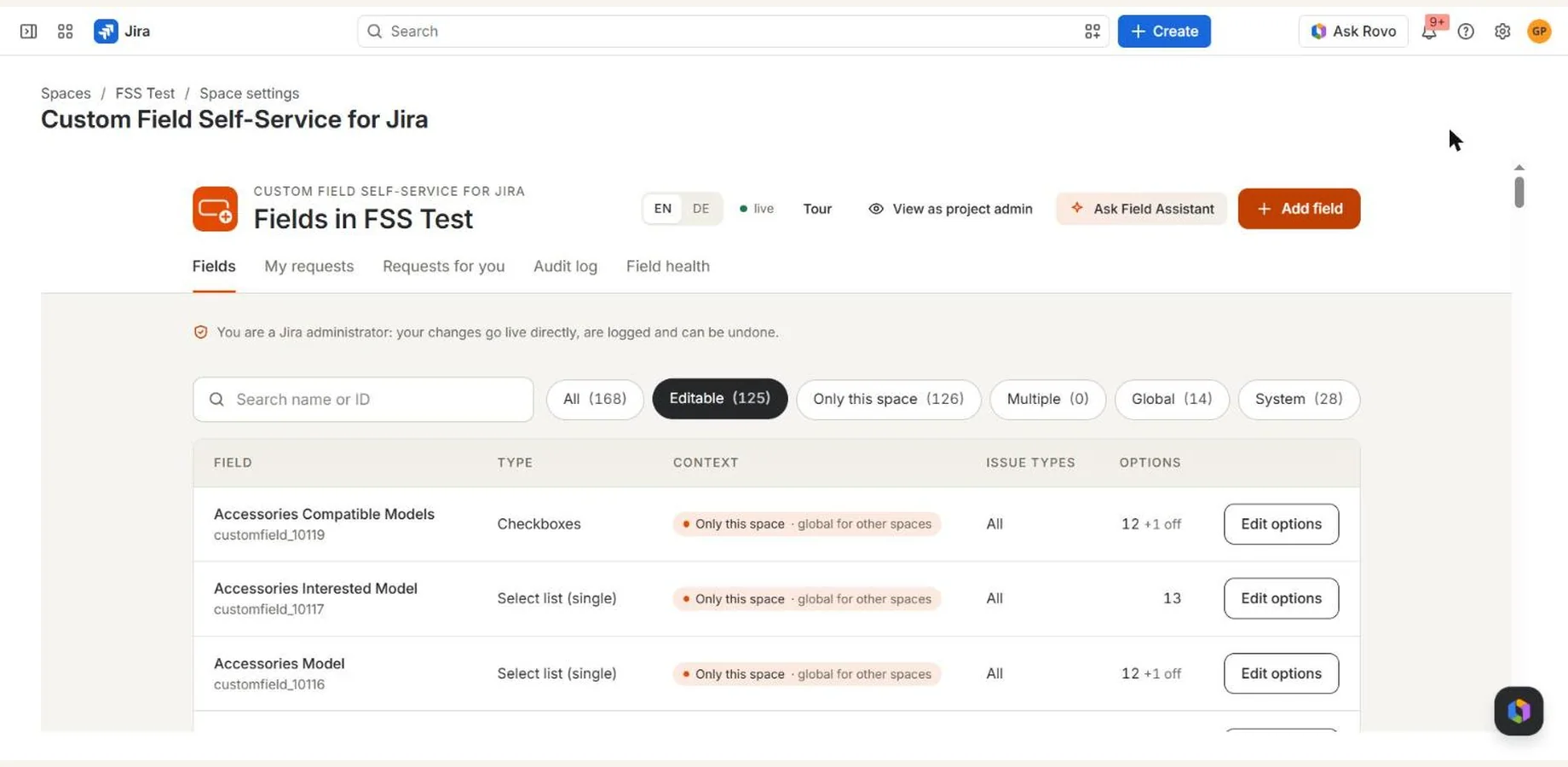
On a space's page (Space settings → Custom Field Self-Service for Jira) you work directly:
Add field creates a field at once when you confirm. You can also give it a Global context.
Open a field to Edit its name and description, Change spaces of its context, Manage its screens, or Take out of use… (removes it from every screen; values stay, Undo puts it back).
View as project admin shows the page exactly as the space's project admins see it, with changes switched off. Select Back to my view to return.
On Field health you see every changeable custom field of the site. Tick fields to Put on this space's screens or Take out of use, use Create dropdown on a text field that should be a dropdown (copying the existing values), and Check for outside changes to find options changed outside the app.
Every change is logged. A notification offers Undo right away, and the audit log keeps it available.
Configuration
All settings are on the Configuration tab. Nothing applies until you select Save settings; the app, the Field Assistant and the guideline check then use the new settings within 30 seconds. Discard throws unsaved changes away.
Option changes by project admins
Choice | Effect |
|---|---|
Approval by a Jira administrator (default) | Every change a project admin makes becomes a request. |
Directly, for fields only their space uses | Project admins change these options right away. Logged; the guard rails still apply. |
Shared and global fields always need a Jira admin.
Spaces per context
Maximum - how many spaces a project admin may pick when requesting a new field. Default: 10, the own space included.
Approval requests
Approval space, Work type and (in Jira Service Management) Request type - where the app raises its approval requests. Create hidden request type "Custom field change" creates one that only the app uses. The status shows Ready, Works, with notes or Needs a fix; Check again re-checks.
Approvers - Jira admins who decide requests.
Backup approvers (added on escalation).
Remind approvers after (hours) - default 24. Escalate after (hours) - default 48. Stage 1 escalates to the approvers, stage 2 to the backups.
Allow self-approvals - leave it off (No · production). Turn it on only for testing.
E-mail the requester when a request is approved, rejected or executed.
Raise an alert work item when something fails - select How it looks for a preview.
Daily digest e-mail to approvers with what is waiting - the preview can also Send this e-mail to me.
If the approval space is not a Jira Service Management space, request types don't exist there and the app runs the approval itself.
Allowed field types
The types project admins can request. By default: Select list (single), Select list (multiple), Checkboxes, Radio buttons, Text (single line), Paragraph, Number and Date. You can also allow Date and time, User picker (single) and Labels. New cascading select fields are not offered.
Audit log retention
Delete entries after: Keep forever (default), 12, 24 or 36 months. Older entries are deleted every night.
New fields on screens
At the bottom of the first tab (default) - always the same place.
Next to the most similar field - the app puts the new field right after the most alike field on that screen.
Spaces where it runs
Everywhere else, the page, the agent and the work item action only say "not enabled". None picked means all spaces - but only after the settings were saved once.
AI features (optional)
AI features (Rovo agent) is off by default. When you turn it on and save, the Field Assistant can be used in Rovo and the AI buttons appear in the app. When it is off, the Field Assistant and all AI buttons are hidden, and the work item action Request a custom field explains that the assistant is turned off.
The assistant works within each person's own Jira permissions and previews every change before the person confirms it.
Only Jira admins can change this switch. Every change is logged in the audit log.
If SUPERPORT has to stop the AI features for a while, you see "Temporarily turned off by the app vendor." Your setting is kept and applies again afterwards.
Guard rails
Safe mode - every change becomes an approval request; nothing runs directly. Safe mode also switches on by itself when the daily self-test fails or changes come in unusually fast.
Two-person rule from (work items) - default 100. A change touching this many work items needs approval by a second person.
Automatic safe mode above (changes per hour) - default 30.
Project admins asked per request (max.) - default 10, for requests from people who are not project admins.
Project admins also have a daily limit of direct changes; beyond it, their changes go to approval.
Guidelines for new fields
Setting | Default |
|---|---|
Name: min. characters / Name: max. characters | 3 / 40 |
Max. options | 100 |
Max. option length | 60 |
Similar names from | 0.8 (ratio 0.5-1; higher means only very similar names are flagged) |
Reserved names | One per line, in addition to Jira's system fields |
Field catalogue | Pre-approved standard fields, one per line: |
Minutes per manual ticket / Minutes per approval | 20 / 3 - used for the "time saved" figure in the audit log |
Audit log
The control centre's Audit log tab shows every change and every request of all spaces: date, Requested by, Approved by, space, field, change and status. Filter by Period, field, status and person. Entries can't be changed. Changes made through the Field Assistant are marked via Rovo. Undo is available on the space's page.
Health checks
The Health tab shows whether the app works on your site:
Site compatibility - checks what differs between Jira sites. Run site check, then Fix all for what the app can set itself (for example the best work type for approvals, or switching self-approvals off).
Self-test - runs every day on the self-test field and on demand with Run self-test now. If it fails, safe mode switches on.
Background checks - the nightly checks (options changed outside the app, suggestions, the approvers' digest) and the watchdog, which looks for stuck requests every 30 minutes. Each can be started on demand.
Alerts - alert work items the app raised in the approval space when something failed.
If safe mode switched on by itself, the reason is shown here. Switch it off under Configuration → Guard rails.
Licence
The app is paid via Atlassian and free for up to 10 users. Manage the licence under Settings → Apps → Manage apps. If the licence is not active, every page and action stops with this message and changes nothing:
"The Custom Field Self-Service for Jira license of this site is not active. Nothing was changed. A Jira administrator can renew it under Jira settings > Apps > Manage apps."
Maintenance and status
If SUPERPORT has to pause the app for maintenance, users see one of two messages:
Changes paused "Changes are paused for maintenance to keep your data safe. You can still view everything; editing will be back as soon as possible." All change buttons are disabled.
Unavailable "Custom Field Self-Service for Jira is temporarily unavailable", with View status page.
Open pages follow within a minute and come back by themselves. No data is lost. Follow the status at superapps.statuspage.io.
Data export
The app has no data export of its own. Approval requests are ordinary work items in your approval space and follow your Jira's rules.
Documentation by George Papasotiriou, developer of Custom Field Self-Service for Jira · SUPERPORT. Need help? Open a request in the support portal.
Still stuck? Our team answers in English, German and Greek.
Open a support request